
It has probably happened to you: you ask the AI for a small change, like the color of a wall, and it hands you back a different bathroom. The mirror changed shape, the vanity is new and the towels are folded another way. FLUX 3, the new image model we added to Kouzee, solves exactly that: it changes only what you ask for and leaves the rest of the photo as it was. Here is what you can do with it, how we tested it before launch and when it is worth using.
What is FLUX 3 and what changes in Kouzee?
FLUX 3 Image is the latest model from Black Forest Labs, the team behind the Flux models. Its strengths are precise multi-step editing, control over where each element goes, output of up to 4K and the ability to combine up to 10 reference images.
In Kouzee it is already available in the model picker, under the Flux group, and starting today it is our default Flux model. You can use it to create images from scratch, but where it really shines is when you modify an image that is already on your board. If you want to understand how these models work first, here is this explanation of AI image generation.
Pixel-perfect editing: change only what you ask for
"Pixel perfect" means the edited image matches the original in everything you did not ask to change. It is not an approximation or something "similar": it is the same photo, with a single change.
To test it I took a bathroom with pink tiles and wrote one instruction: "Change the bathroom color to blue". Drag the line in the middle to compare.
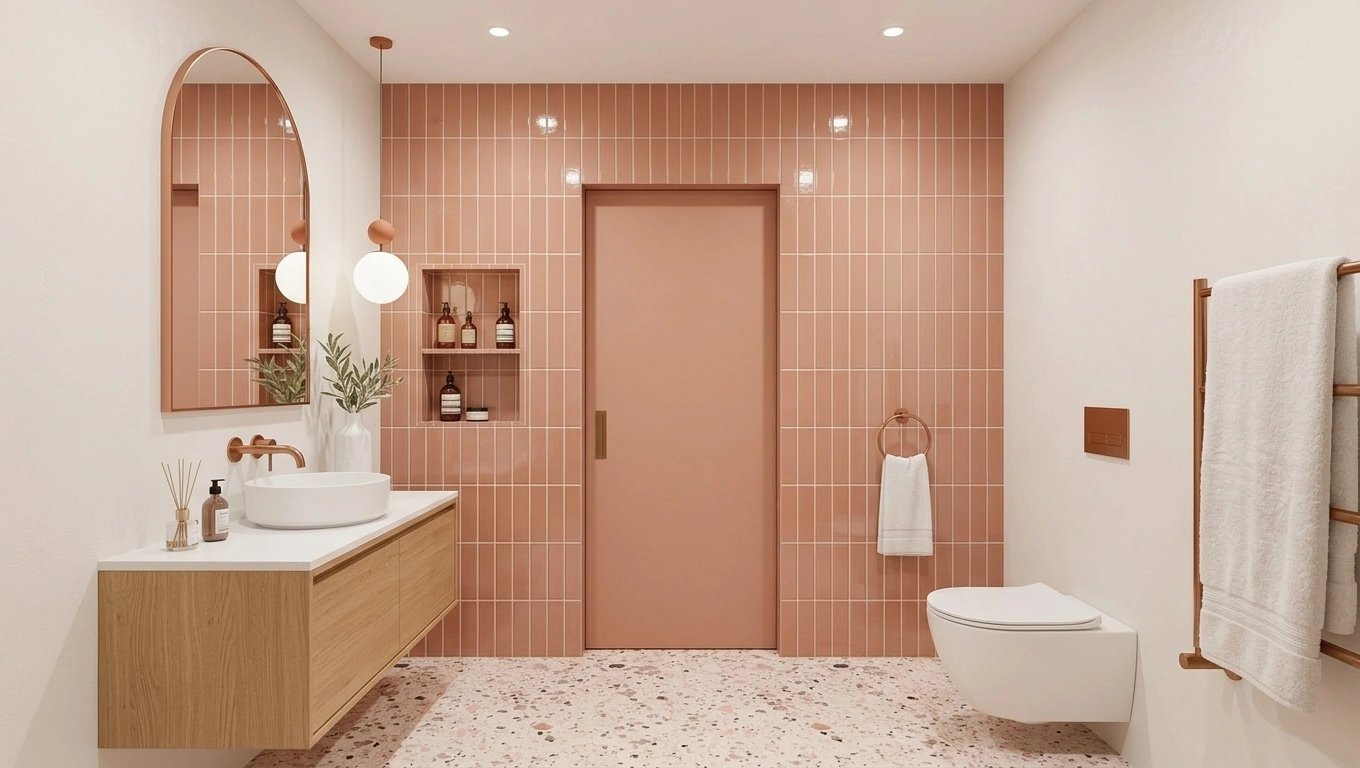
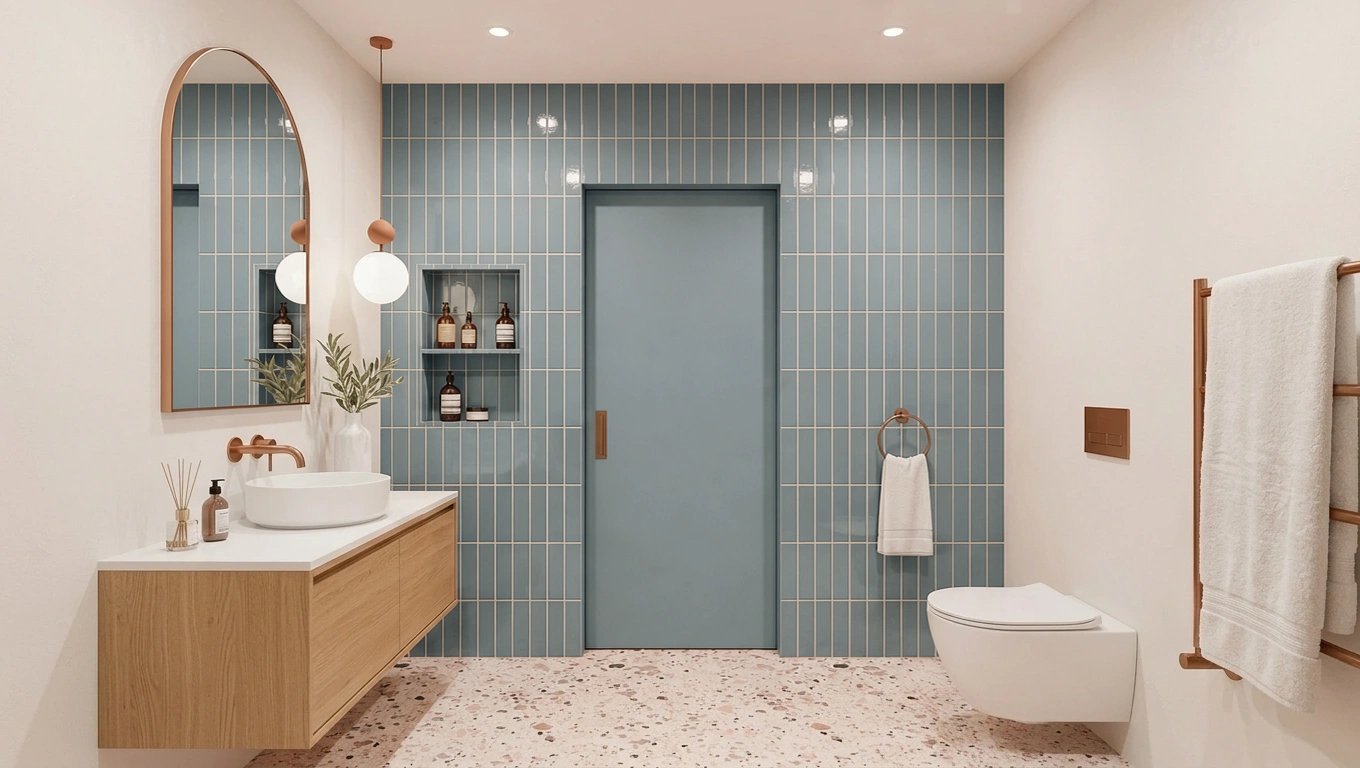
Look at the details that usually get lost: the bottles in the niche, the branches in the vase, the reflection in the mirror, the drape of the towels and every chip of the terrazzo. We measured both images: in the areas that were not supposed to change, like the vanity, the average difference between them is just 0.5%, invisible to the naked eye.
This changes how you work with a client. You can show three tile colors on the same photo and the comparison is honest, because the only thing that varies is the color.
Draw on the photo where each thing goes
Writing "put a cat on the right side" leaves a lot to interpretation. With FLUX 3 you can point it out directly on the image, with the same drawing tools you already use on the board: a rectangle, a circle, an arrow or a freehand stroke.
In this example I drew a red square on the floor and an arrow pointing at the toilet, and wrote: "Add a fluffy puppy inside the red square, and a cat where I point with the arrow".
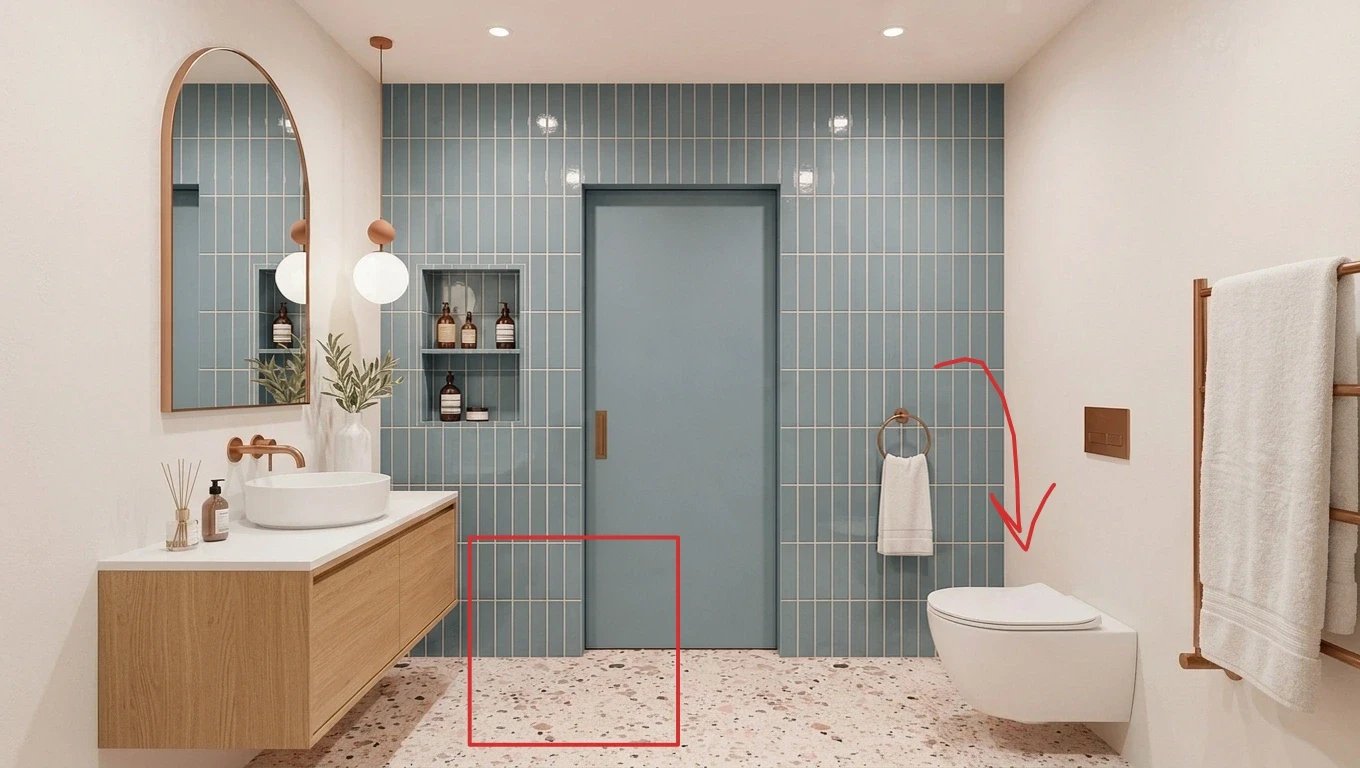
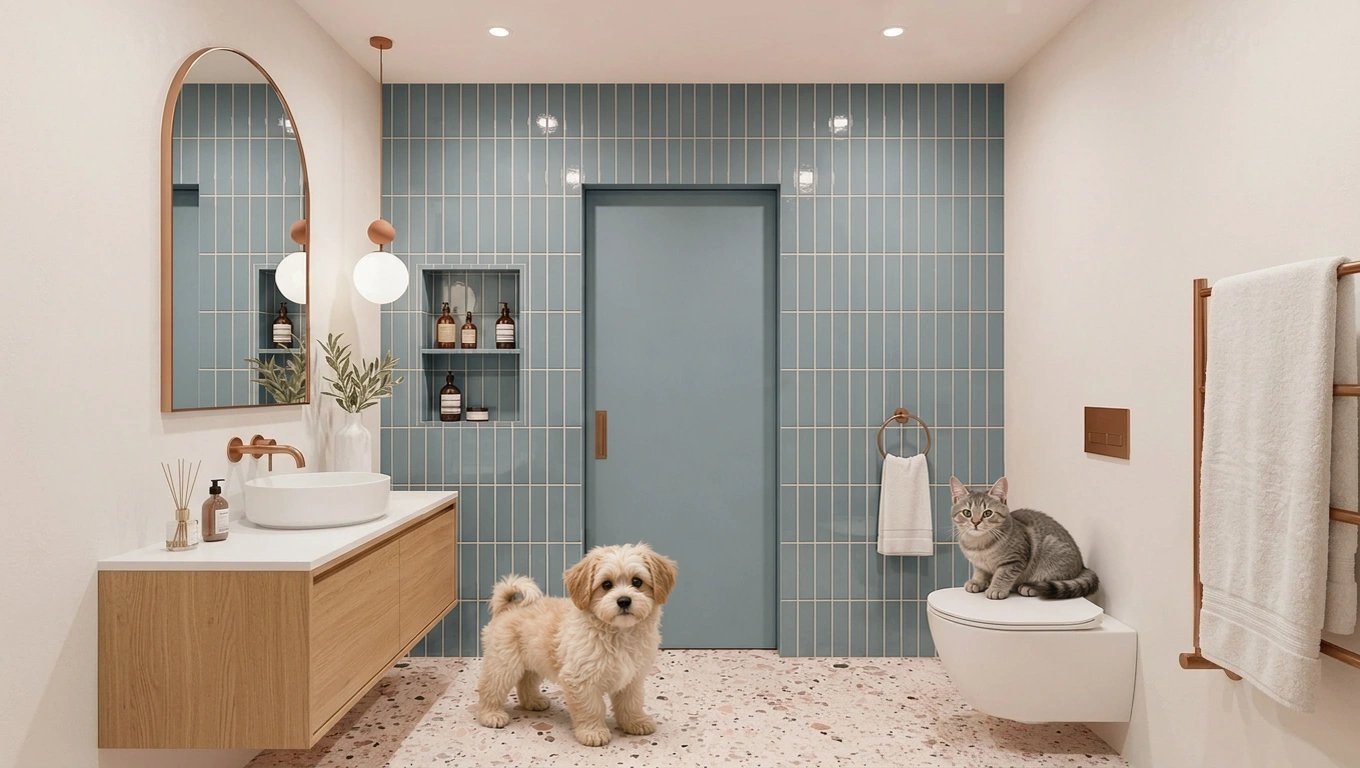
The marks do not show up in the result: Kouzee uses them as instructions and gives the model the clean photo. And the rest of the scene is respected. To check it, we colored only the pixels that changed between the original photo and the result:
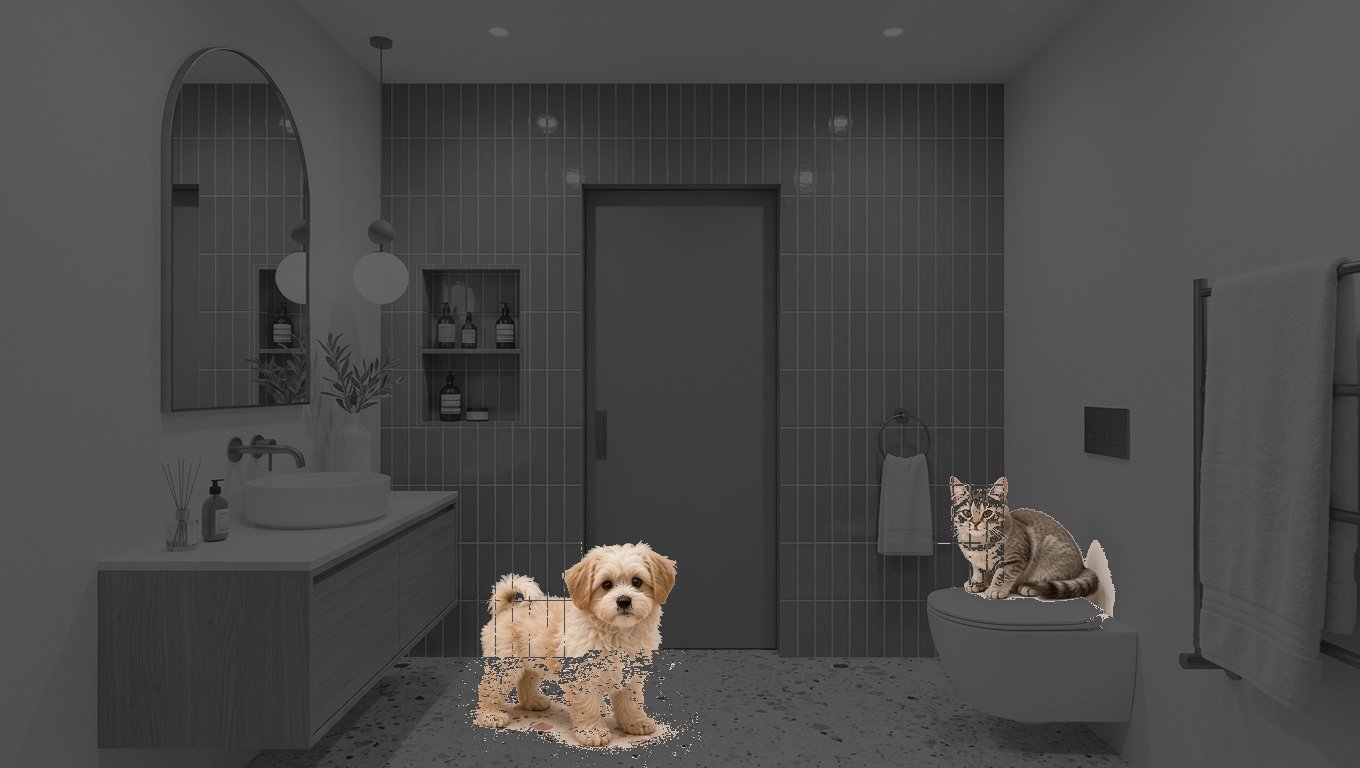
3.9% of the image changed: the dog, the cat and their shadows. Outside the two marked areas there is no visible change.
How to use the marks
- Choose FLUX 3 in the chat's model picker.
- Draw on the photo with the drawing tool: a rectangle or a circle to mark an area, or an arrow to point at a spot. Freehand arrows work too.
- Select the photo and write what you want, referring to each mark by its color or shape: "a plant in the green circle", "an armchair where the arrow points".
A shortcut I really like: if you have a catalog product on the board, draw an arrow from the product to the spot in the photo where you want it. Kouzee understands that the product goes there, even if you don't mention it in the text.
Catalog products at their real size
A classic AI problem is scale: you ask for a table lamp and you get a lamp the size of a chair. When you place a catalog product with FLUX 3, Kouzee uses its real dimensions to work out how much space it should take up in the photo, using what is already in the scene, like a piece of furniture or a door, as a reference.
For example, a table lamp 31 cm in diameter and 54 cm tall, placed on a sideboard, ends up the size it would have in real life, next to the lamp that was already there. And if you also draw an arrow, you decide where it goes and the catalog sets the size.
How we tested it before launch
Before putting a new model in your hands, we compare it against a fixed set of real cases: 16 situations in bedrooms, living rooms, kitchens, entryways, kids' rooms and meeting rooms, with products from different stores, such as rugs, cushions, wallpapers, lamps and flooring. We always use the same photos and the same positions, so we compare versions on equal terms and are not swayed by one lucky image.
The test taught us something important. In a first version, Kouzee tried to guess on its own where each product went, and in several cases it picked the wrong spot: it put the cushion on the bed when it belonged on the chair. The size was calculated correctly; what failed was the placement. That is why we decided that you choose the placement, with the marks, and Kouzee takes care of the size. That change is what you see in the examples in this article.
We keep using that same set of cases every time we adjust something, to measure whether an improvement really improves things.
When is FLUX 3 the right choice?
- Targeted changes to a photo you already like: the color of a wall finish, the material of a countertop, a different lamp. This is where pixel perfect makes the difference.
- Adding or moving elements in a precise spot: draw the mark and stop describing positions in words.
- Placing catalog products when scale matters, as in a proposal for a client.
- Final high-resolution images: it generates up to 4K, although higher resolutions cost more.
For exploring many ideas quickly, Nano Banana 2 Lite is still more practical, and if you need text or legible dimensions inside the image, GPT Image 2. Keep in mind that FLUX 3 takes its time: an edit usually takes about a minute, sometimes two. You can review the rest of the models in Kouzee's image and video updates.
Try it on your next project
My suggestion: take a photo of a real space, choose FLUX 3 and ask for a single change, like the color of a wall or the floor material. Then compare both images calmly. Next, try drawing an arrow from a catalog product to the photo. It takes two minutes and it will show you what it means to edit without losing anything you already had.
If you don't have an account yet, check out Kouzee's plans. And if you'd rather we show you how to apply it to your studio or your brand, book a workshop with us.