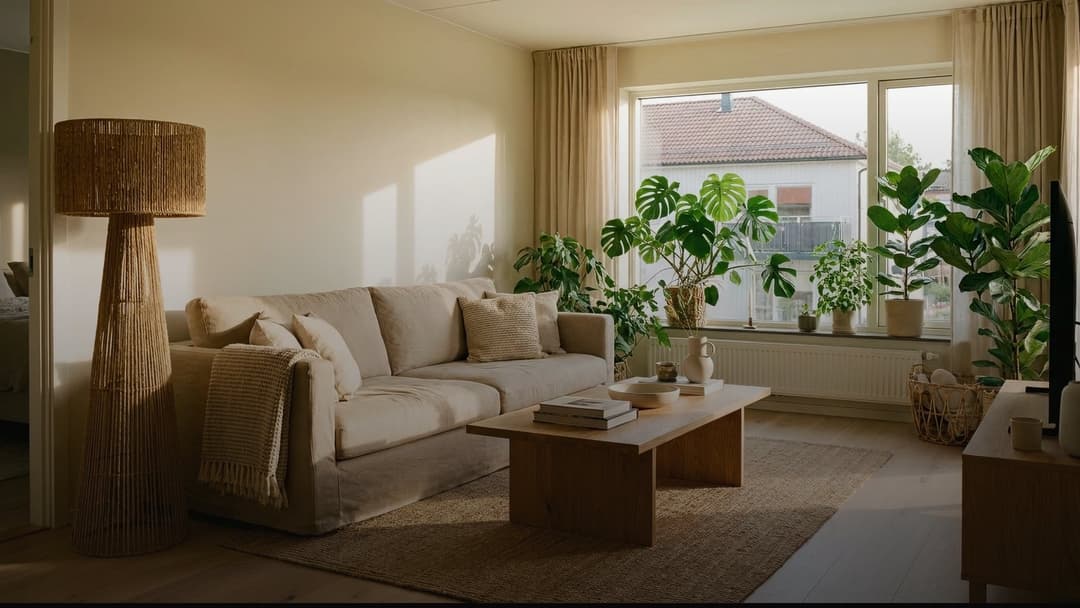
If you open the model selector in Kouzee, you'll see a long list: Nano Banana, GPT Image, Flux, Gemini Omni, Seedance, Topaz. They're not there for the sake of it. Each model handles one part of the work better: one is fast and cheap for exploring, another delivers more detail for the final image, another edits without touching what's already right, another can write legible text inside the image.
That's why there's no “best model” for everything. There's the best one for what you need at that moment. A living room proposal you're still thinking through doesn't need the same tool as the render you'll present to the client tomorrow. In this guide I'll tell you what each model available today in Kouzee does and when it's worth using, so you spend your Zees where they really show. I generated every image and video in this article on a Kouzee board with these same models.
How models are chosen in Kouzee
Everything happens on the board. You have two paths:
- The Kou agent, in the chat panel. You write what you want and it takes care of it.
- The toolbar that appears when you select an image or a video on the board.
For generating, the agent has two modes: Image and Video. What it does depends on the model you choose and on what you have selected:
- With nothing selected, it creates something new from your prompt.
- With an image or a video selected, it modifies it, enhances it, extends it or separates it into layers, depending on the model and the action.
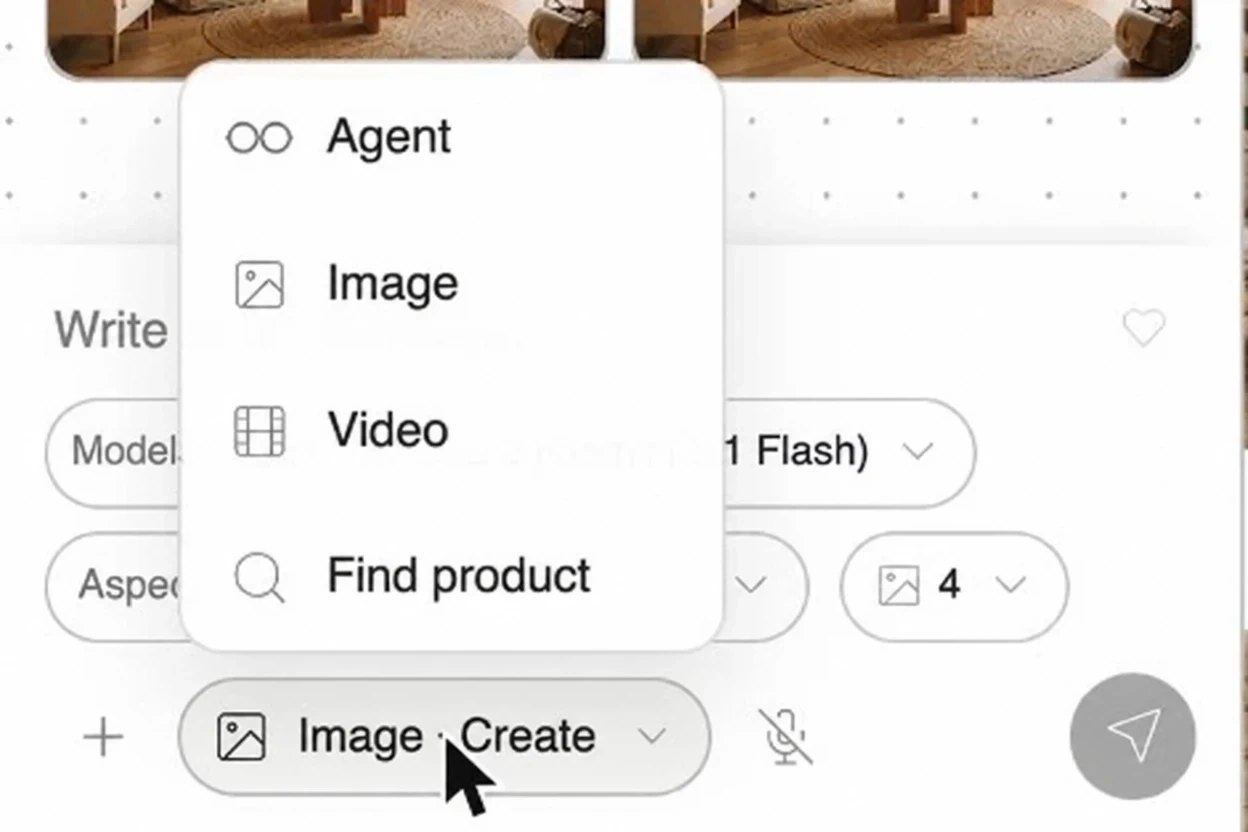
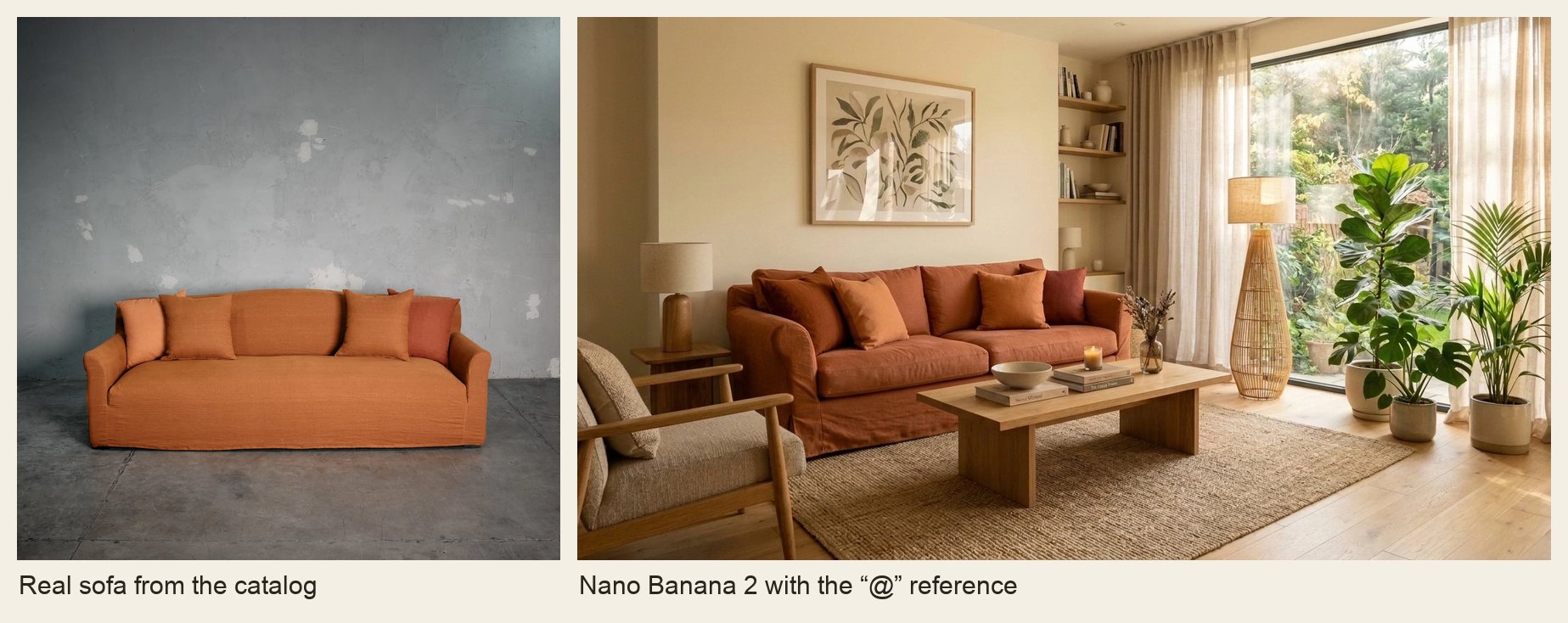
You can also type “@” and mention any element on the board (a photo of the space, a catalog product, an earlier render) to use it as a reference in the prompt. That way the AI knows exactly which is the space and which is the product it has to integrate. In What's new in Kouzee: AI images and video we show you more examples of mentions.
Other details worth knowing:
- You can ask for up to 4 images at once to compare variations.
- In several models you choose the quality and the resolution (1K, 2K or 4K), as well as the aspect ratio (16:9, 4:3, 1:1 and others).
- Everything is charged in Zees, Kouzee's currency, and before sending you see the estimated cost next to the button.
- What you generate gets an automatic name and shows up in the Media section of the catalog and in the Content tab, so you can reuse it on other boards.
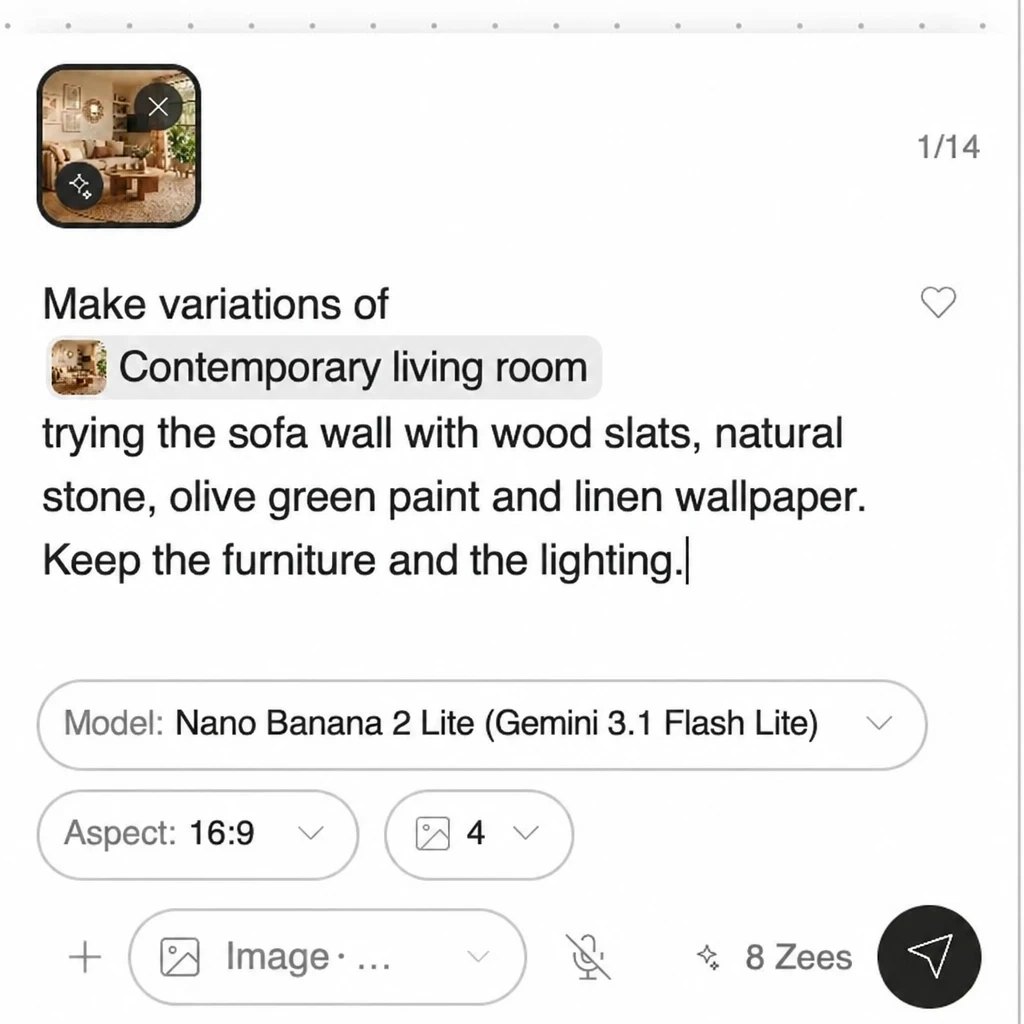
Image models for creating and modifying
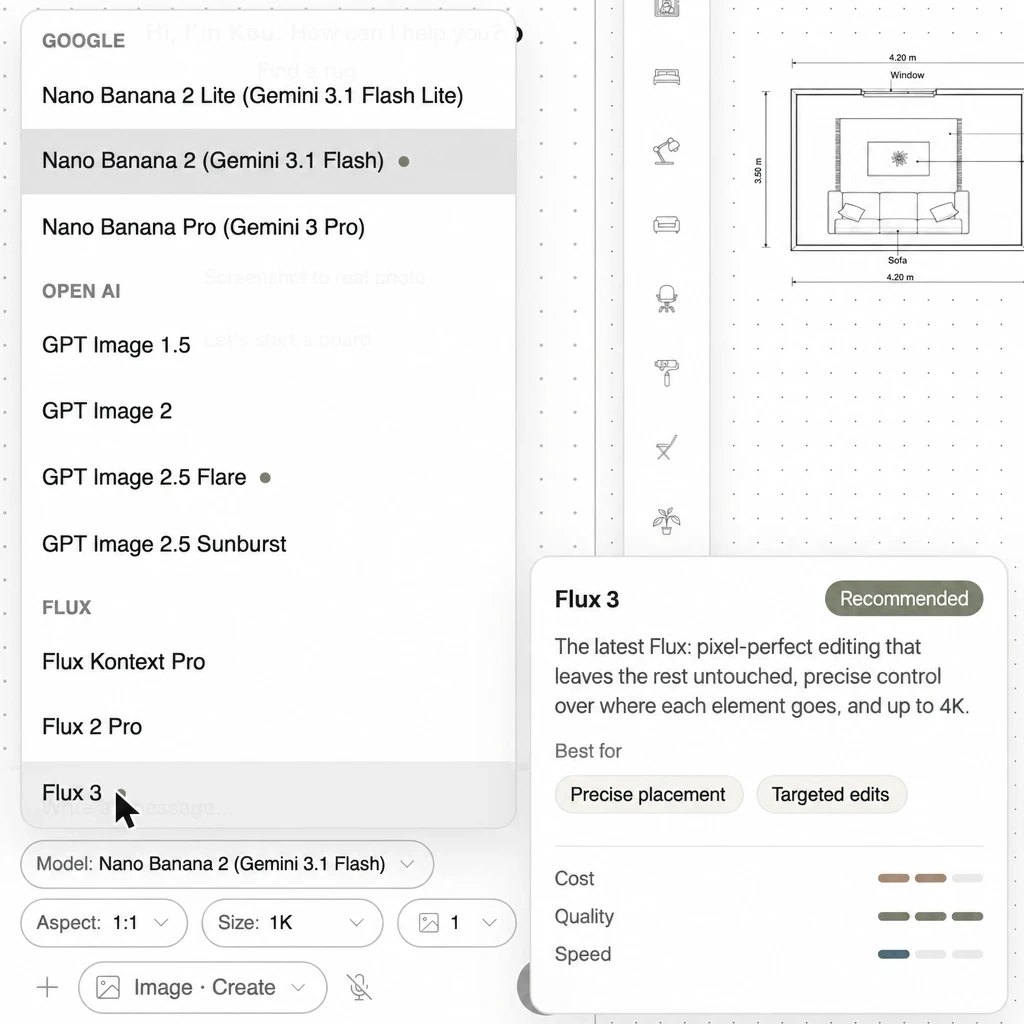
These are the ones you'll use most: they create an image from scratch or modify one you already have. In the selector they're grouped by family, and some carry a dot that marks them as recommended. If you hover over one, you see its card: what it's ideal for and how it compares in cost, quality and speed.
Google: Nano Banana
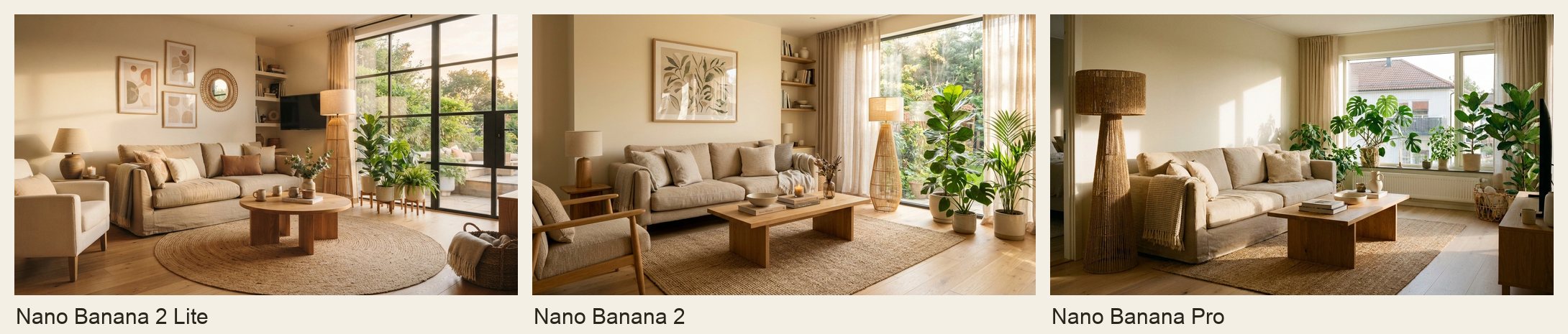
- Nano Banana 2 Lite. The fastest and most affordable option. Ideal for exploring: trying ideas, asking for variations and refining a prompt before spending on the final image. If you still don't know whether the living room goes with light or dark wood, start here.
- Nano Banana 2. The best balance of quality, price and speed. It works very well for interiors and for placing products in a space using references with “@”. It's a good model for everyday work.
- Nano Banana Pro. Google's top quality: better scale, light and detail. It's the one to use for the final image and for complex scenes, with many objects or difficult lighting. It's slower and costs more, so it's worth using once the idea is clear.
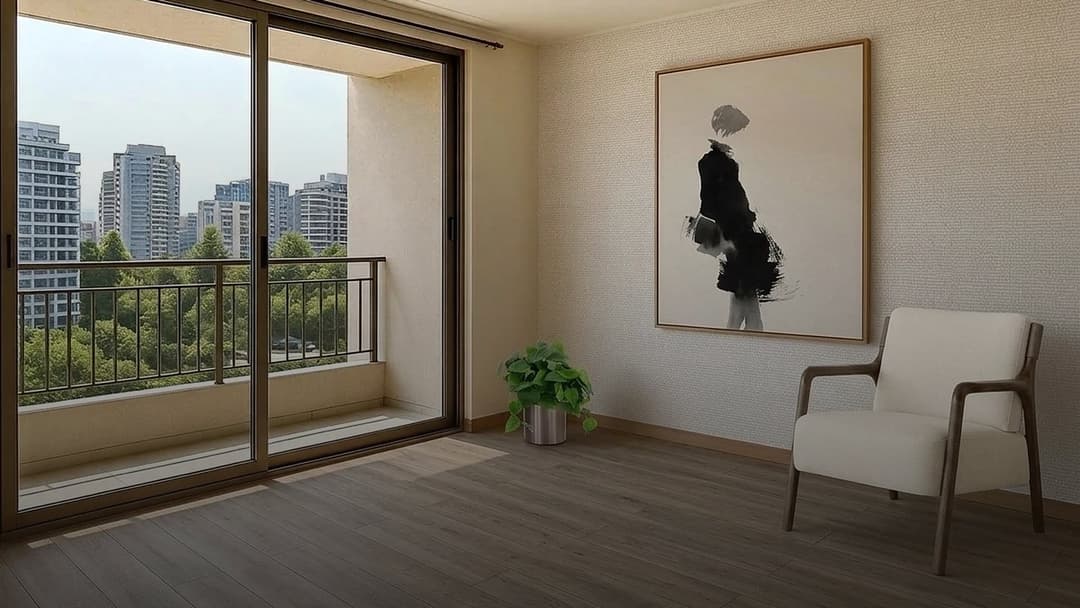
To compare, I gave all three the same prompt: a bright living room with a linen sofa, an oak table, a jute rug and plants next to a large window. All three understand the brief; the difference is in the light, the scale and the detail.
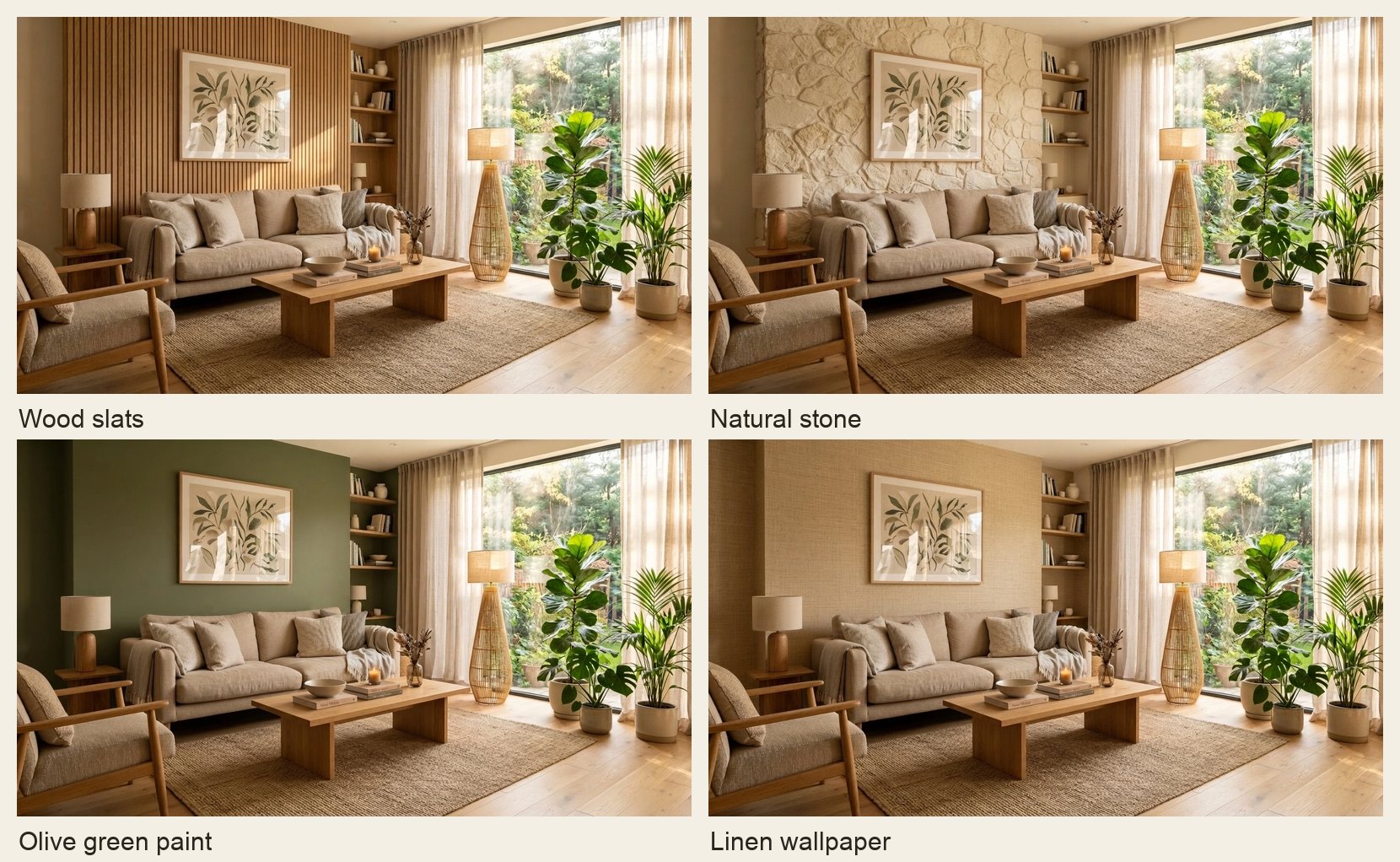
With Nano Banana 2 Lite, I also tried four different finishes for the sofa wall in the same living room. It's the kind of exploration where it pays to spend little.
And to place a real product, I added a sofa from the catalog to the board and passed it to Nano Banana 2 as a reference. The sofa comes in with its shape and color, at the scale of the space.
OpenAI: GPT Image
- GPT Image 2.5 Flare. OpenAI's fast model for everyday work, with quality similar to GPT Image 2 and good when the image includes text.
- GPT Image 2.5 Sunburst. The most precise for editing without losing the details of the original. If you need to change something in a product photo or a campaign piece and keep the rest intact, this is the one.
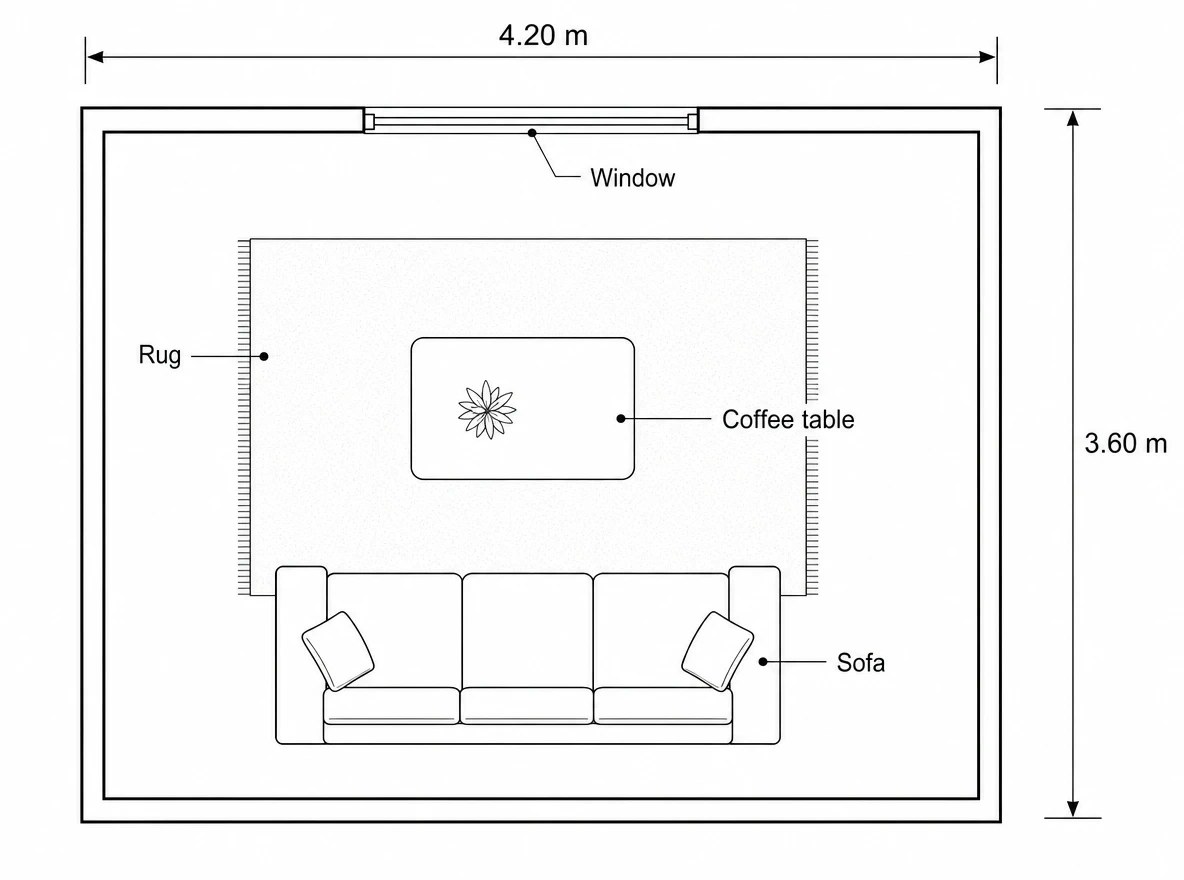
- GPT Image 2. Very good for text inside the image, floor plans and dimensions. Use it when you need names, measurements or labels to be readable.
- GPT Image 1.5. The previous model in this family, with fixed sizes. Useful if you already work with its style and want to stay consistent with images you made before.
Black Forest Labs: Flux
- Flux 3. The latest Flux and the recommended one in this family. It edits without touching the rest of the image and gives you precise control over where each element goes, with resolution up to 4K. Use it when you need to place an object in an exact spot or make a very clean targeted edit.
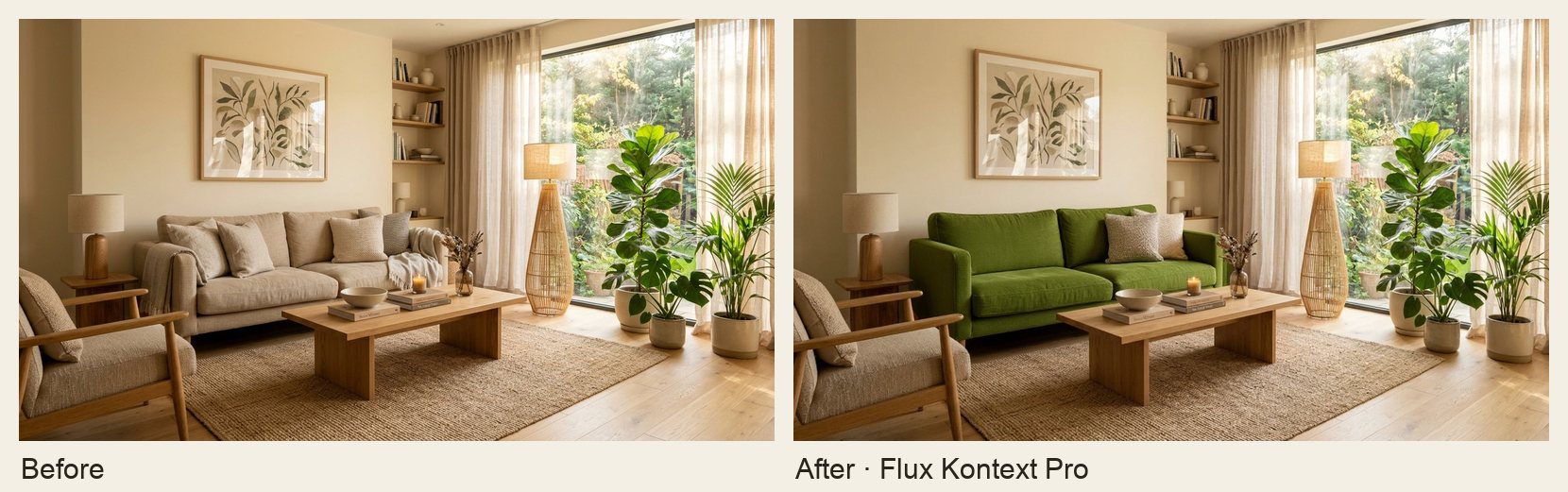
- Flux Kontext Pro. Edits by following instructions and respects the original composition. Ideal for targeted changes: “change the sofa color to olive green”, “remove the rug”, “add a floor lamp next to the window”.
- Flux 2 Pro. High realism and up to 10 reference images. Useful when you want to combine several products, materials or samples in one scene.
A tip I learned while testing: be specific about what must not change. When I asked only “change the sofa to olive green”, Flux Kontext Pro also painted the armchair. When I clarified “only the large sofa; the wooden armchair stays the same”, it respected the rest of the living room.
Enhancing images with Topaz
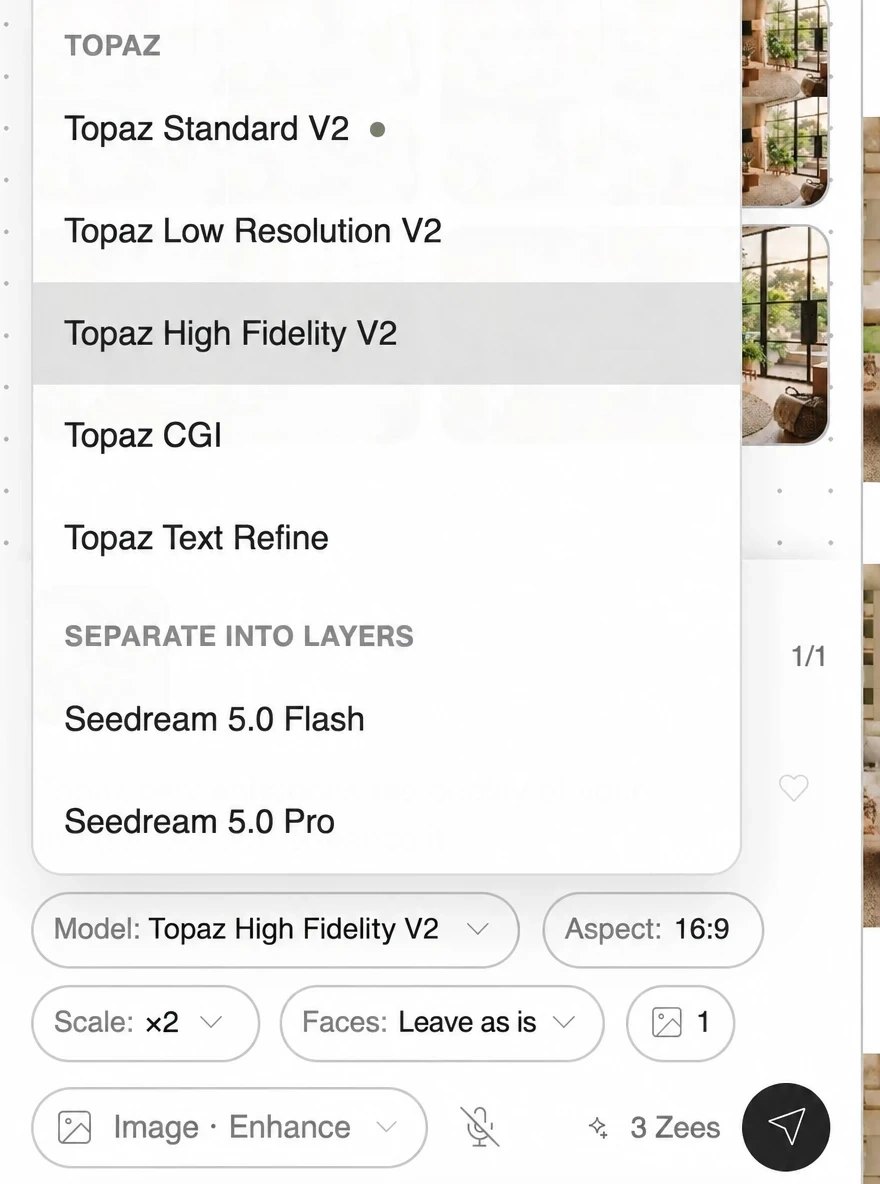
Enhancing isn't the same as modifying. With Topaz you increase an image's resolution without changing its content: no new furniture appears and the light doesn't change, it just gains sharpness and size. You select the image, tap “Enhance quality” in the toolbar and choose the mode that fits best:
- Standard. For photos in general, for example when you need to print them.
- Low Resolution. For small or heavily compressed images, like screenshots or photos someone sent you by message.
- High Fidelity. For photos that are already good: it preserves detail to the maximum.
- CGI. For 3D renders and digital illustrations.
- Text Refine. Keeps text, fine lines, floor plans and logos legible.
Here's how a detail of the Nano Banana Pro living room looks before and after enhancing it with Topaz CGI at twice the size:
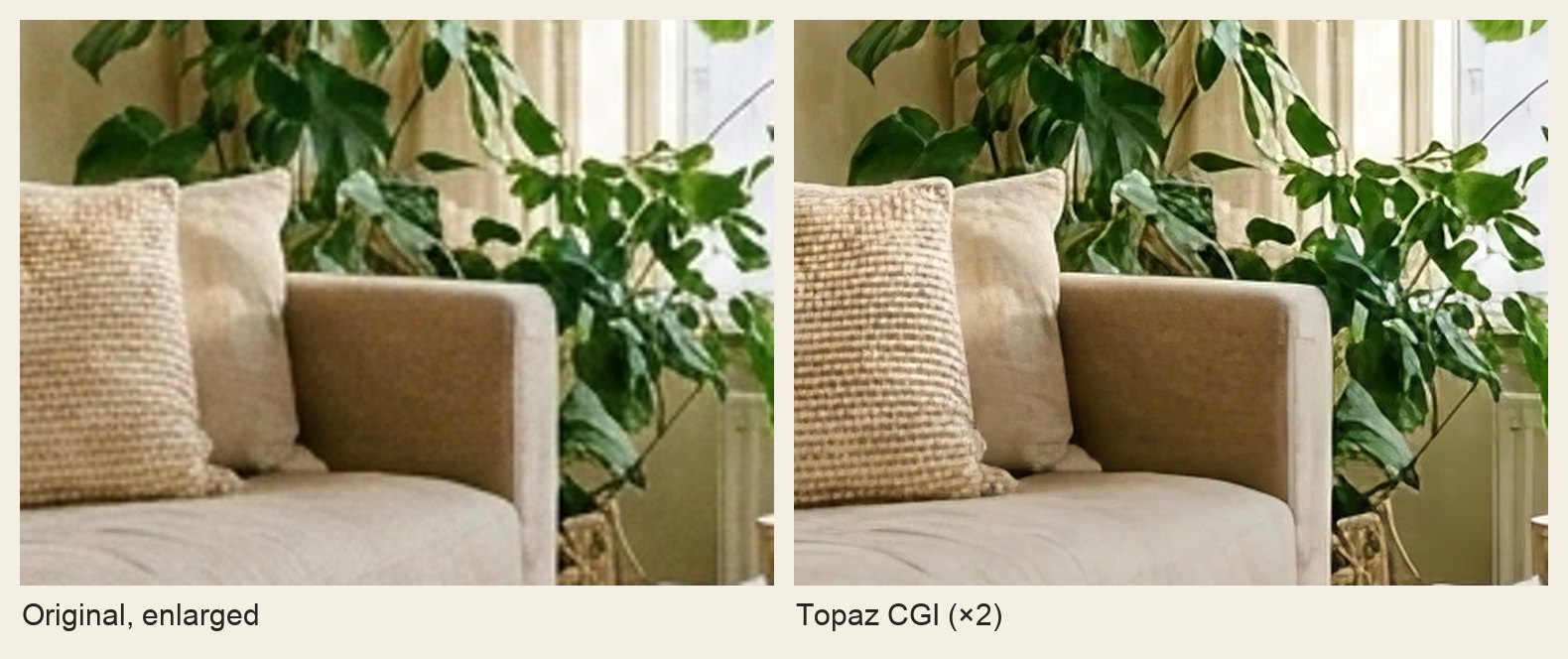
The practical rule: enhance at the end, once you've chosen the final image.
Separating an image into layers with Seedream 5.0
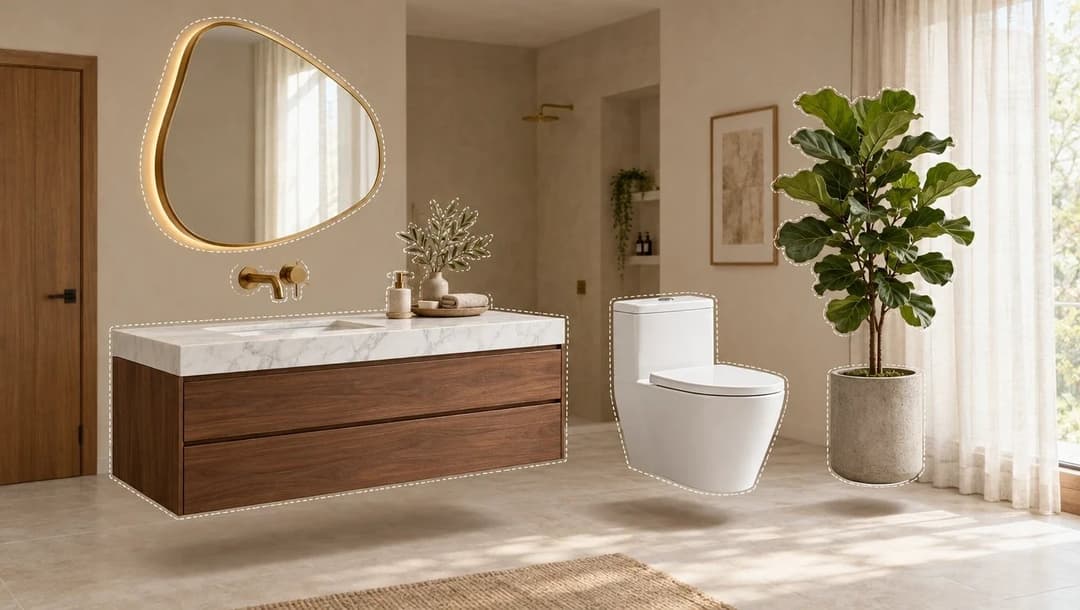
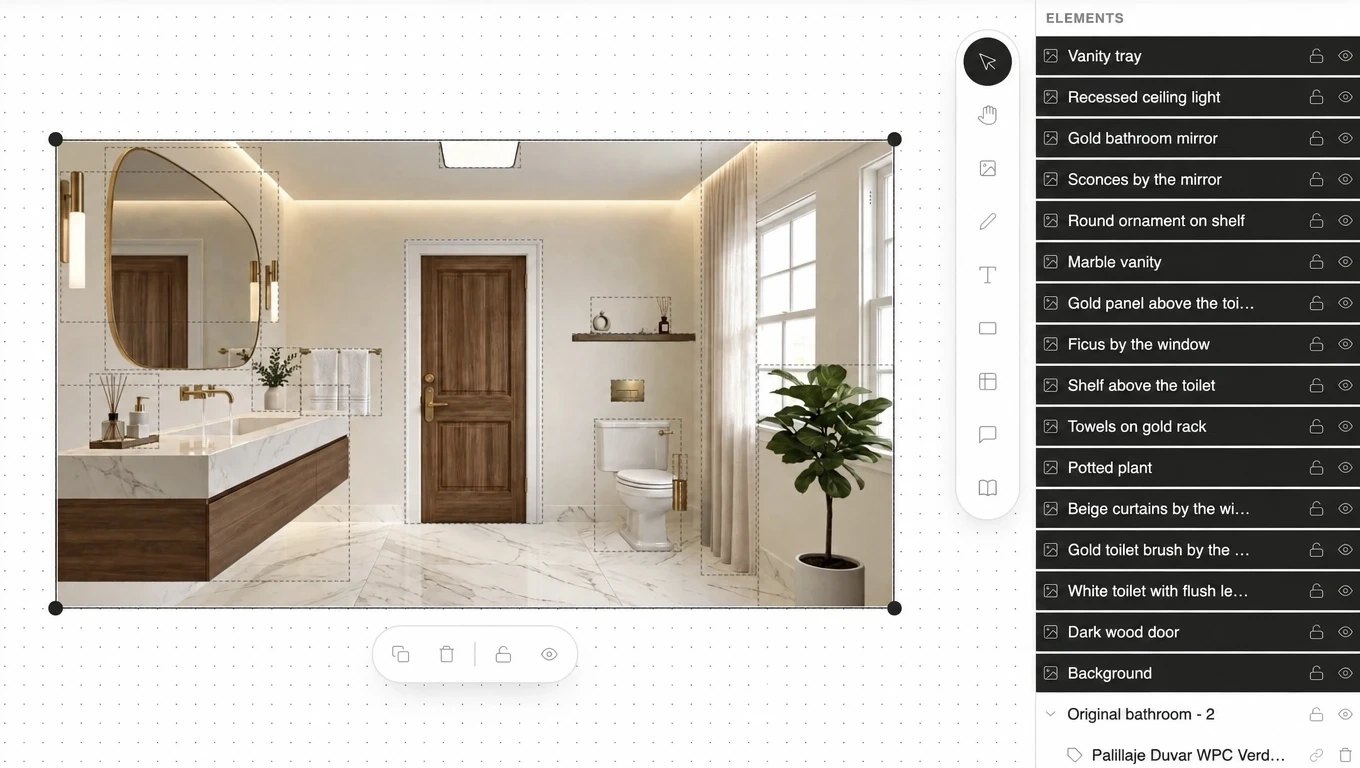
This feature takes an image and separates it into a background and several editable layers (objects and text), each with its own name. That way you can move, remove or reuse pieces without generating everything again: try the vanity on another wall, hide a generic product to put in a real one from the catalog, or pull out a cut-out object for a presentation board.
- Seedream 5.0 Flash: fast and affordable.
- Seedream 5.0 Pro: more detail in edges and textures.
From the agent panel, in “Separate” mode, you can ask in plain words what you want to separate: “separate only the mirror and the plant”. The step-by-step guide with screenshots is in Separate into layers: edit each render object.
Video models for creating, modifying and extending
In Video mode, with nothing selected, the agent creates a video from your prompt. With a video selected, the models can modify or extend it. You can also mention an image from the board with “@” so the video starts from it.
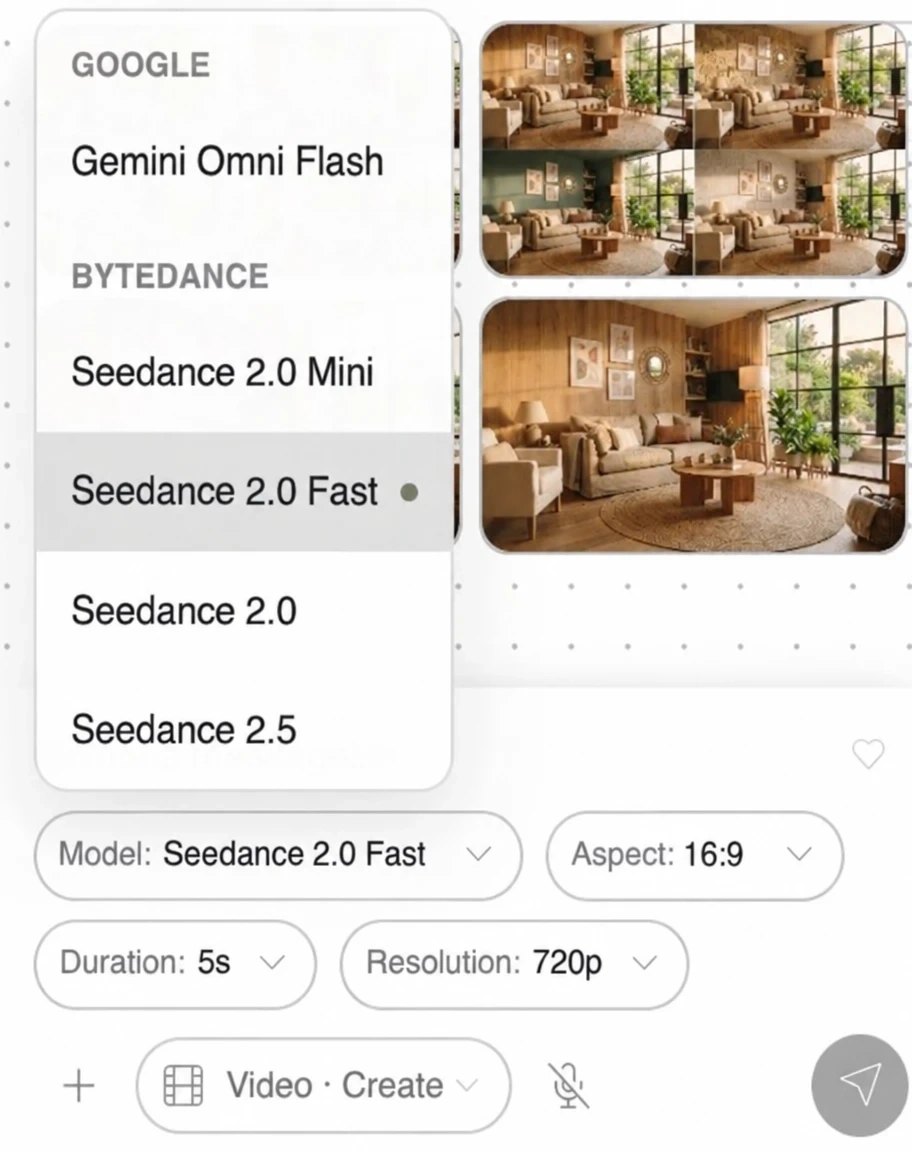
Google: Gemini Omni Flash
Gemini Omni Flash creates videos with audio from text, from an image or from several references, and it also modifies and extends existing videos. It's the only video model in Kouzee that accepts realistic people as a reference. I made this one from the Nano Banana 2 living room:
I'll be honest: in my view, this model isn't very good yet because it makes mistakes. Watch the video closely: the woman passes through the coffee table and leaves the book on a vase instead of on the table. It works for showing an idea or the mood of a space, but if the video is for a client, check it carefully before presenting it. And if your scene doesn't need people, in my tests the walkthroughs with Seedance came out cleaner.
ByteDance: Seedance
All Seedance models create, modify and extend videos.
- Seedance 2.0 Mini. The most affordable option, for videos of 5 to 15 seconds.
- Seedance 2.0 Fast. Fast and affordable, with good motion.
- Seedance 2.0. More quality and detail, up to 4K, and it supports several references.
- Seedance 2.5. The most powerful in the family: videos of up to 30 seconds with many references.
Important: Seedance doesn't accept realistic people in reference images. If your video includes people, use Gemini Omni Flash.
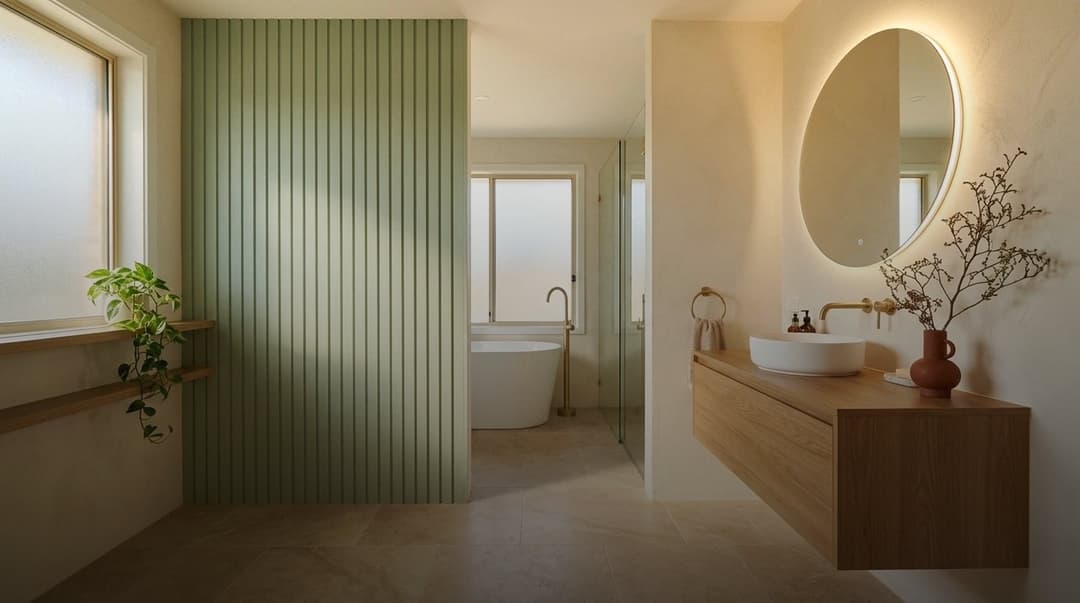
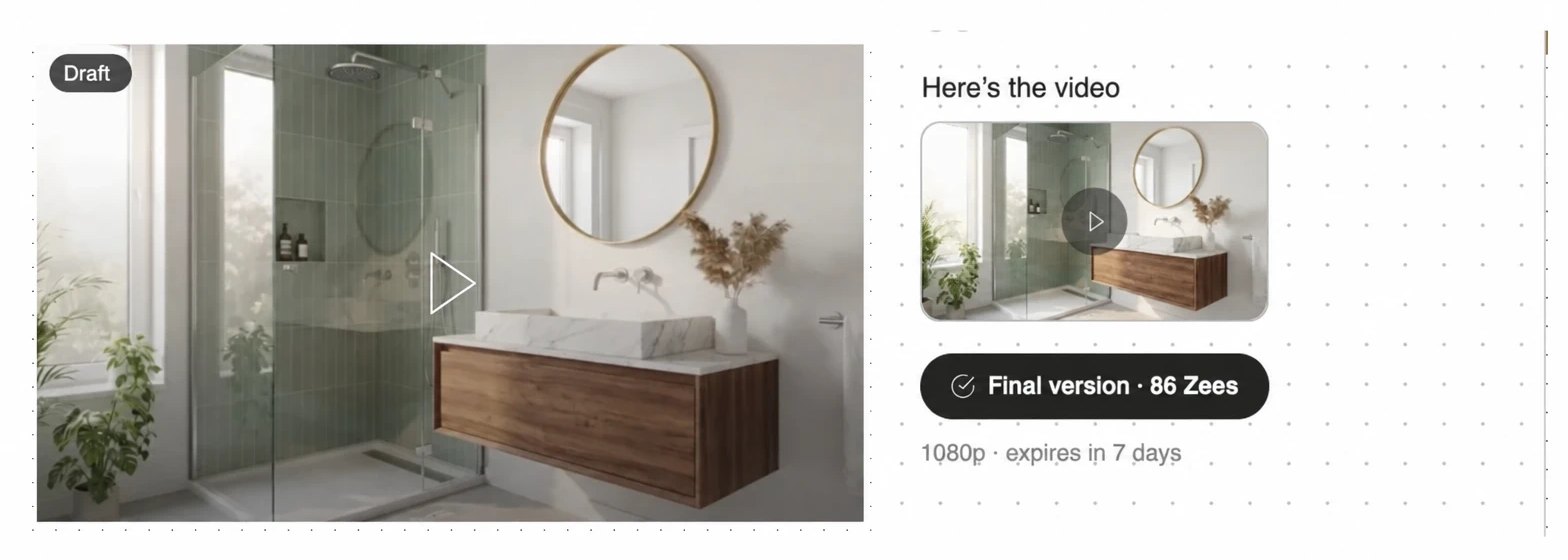
I made this 10-second walkthrough with Seedance 2.5, starting from the bathroom I generated with Nano Banana Pro:
Seedance 2.5 draft mode
Seedance 2.5 has a draft mode: in “Resolution” you choose “Draft (480p)” and get a cheaper test version to check the motion, framing and pacing. In my test, a 5-second draft cost 17 Zees, versus 35 for the same video in 720p.
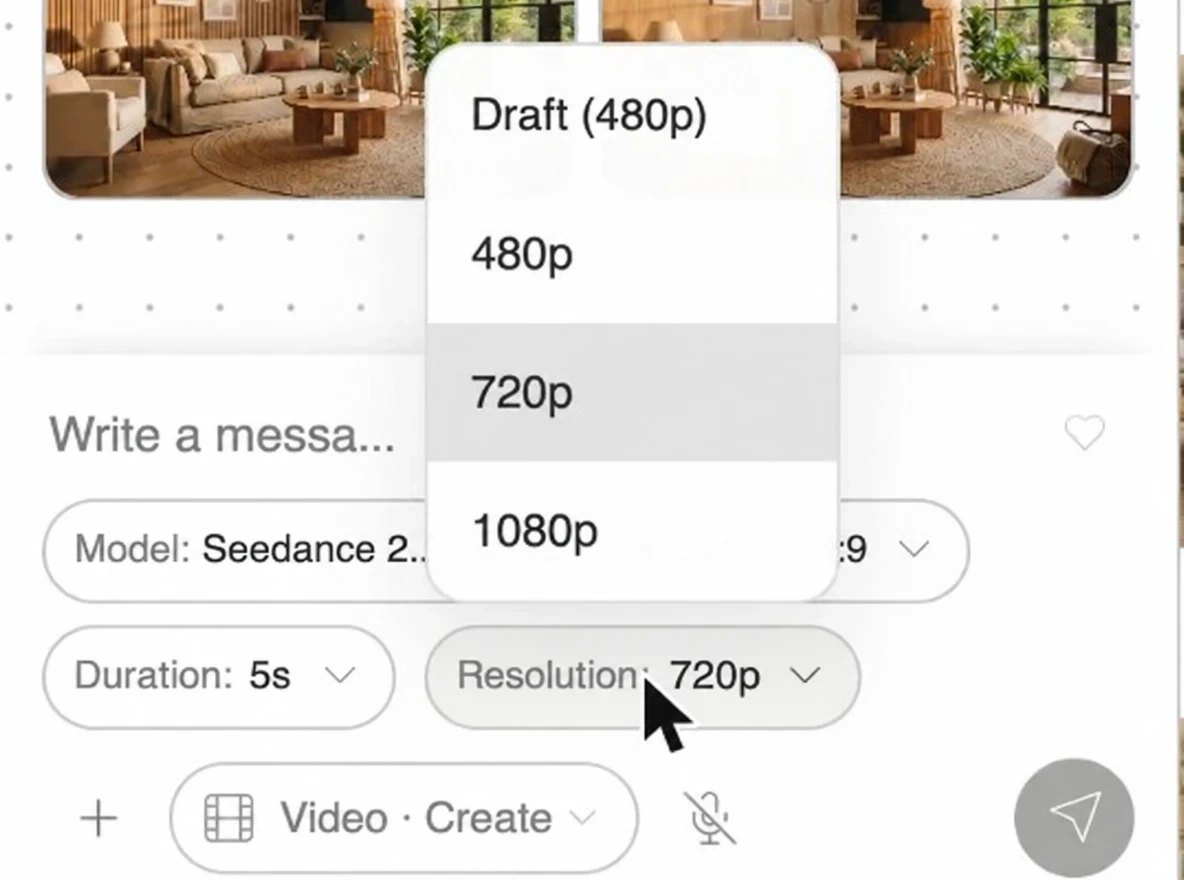
If you like the draft, you tap “Final version” and generate it in 1080p with the same motion, without starting over. The button shows you the cost before you confirm, and the draft stays available for 7 days. It's the best way to avoid spending on a long video you end up not liking.
Enhancing videos with Topaz
Just like with images, you can increase a video's resolution with two modes:
- Starlight. Designed for AI-made videos: it improves materials, textures and detail while increasing the resolution. Ideal for presenting to clients.
- Fiel. Increases the resolution without inventing anything: geometry and products stay exact. It's more affordable and the right choice when the video shows real products that can't change.
Which model to use for what you want to achieve
| If you want to… | Use… |
|---|---|
| Try 4 living room ideas quickly | Nano Banana 2 Lite |
| Everyday interior images | Nano Banana 2 |
| The final render for the client | Nano Banana Pro |
| Put a real product into a photo | Nano Banana 2 or GPT Image 2.5 Sunburst |
| Edit a product photo without losing details | GPT Image 2.5 Sunburst |
| Readable text, dimensions or labels in the image | GPT Image 2 |
| A targeted change without moving the composition | Flux Kontext Pro |
| Place an object in an exact spot without touching the rest | Flux 3 |
| Combine many products or materials in one scene | Flux 2 Pro |
| Enlarge a render for printing | Topaz CGI |
| Move or replace objects in a render | Separate into layers (Seedream 5.0) |
| A short, affordable video | Seedance 2.0 Mini |
| A 30-second video | Seedance 2.5 |
| A video with a person | Gemini Omni Flash (check the result carefully) |
| Extend a video you already have | Gemini Omni Flash or Seedance |
| Upscale a video to 4K without the products changing | Topaz Fiel |
An example from start to finish
Imagine you're remodeling a client's bathroom. You upload the photo of the space to the board and, with Nano Banana 2 Lite, ask for 4 variations with different finishes to see which direction they like. When they pick one, you redo it with Nano Banana Pro to get the best light and detail, mentioning the real finish from the catalog with “@”.
If the sink that appears is generic, you separate the image into layers, hide it and put the real product in its place. For the presentation, you increase the resolution with Topaz CGI. And if you want to close with a video walkthrough, you make a draft with Seedance 2.5, adjust whatever is needed and turn it into the final version. When you're done, everything is saved in Media so you can use it again in another project.
Four tips to spend less and achieve more
- Start cheap and iterate. Explore with Nano Banana 2 Lite, ask for 4 variations, refine the prompt and only then move to Nano Banana Pro for the final image. The first attempts are almost never the final ones.
- Use references with “@” and be specific. Mentioning the photo of the space and the exact product gives better results than describing them in words, and saying what must not change avoids surprises.
- Make a draft before the final video. With Seedance 2.5, review the test version first. If the motion or framing doesn't work, you fix it before paying for the final version.
- Enhance at the end. Topaz doesn't change the content, so it's best to use it only on the image or video you've already chosen. Enhancing ten variations to keep one is overspending.
Try it on your next project
Open a board, upload the photo of the space you're designing and start with a fast model. Once the idea is clear, move to the higher-quality one, separate into layers whatever you want to adjust and close with a video to present to your client. Before each step you'll see the cost in Zees, so you decide with full information. If you don't have an account yet, check out Kouzee's plans and start today.