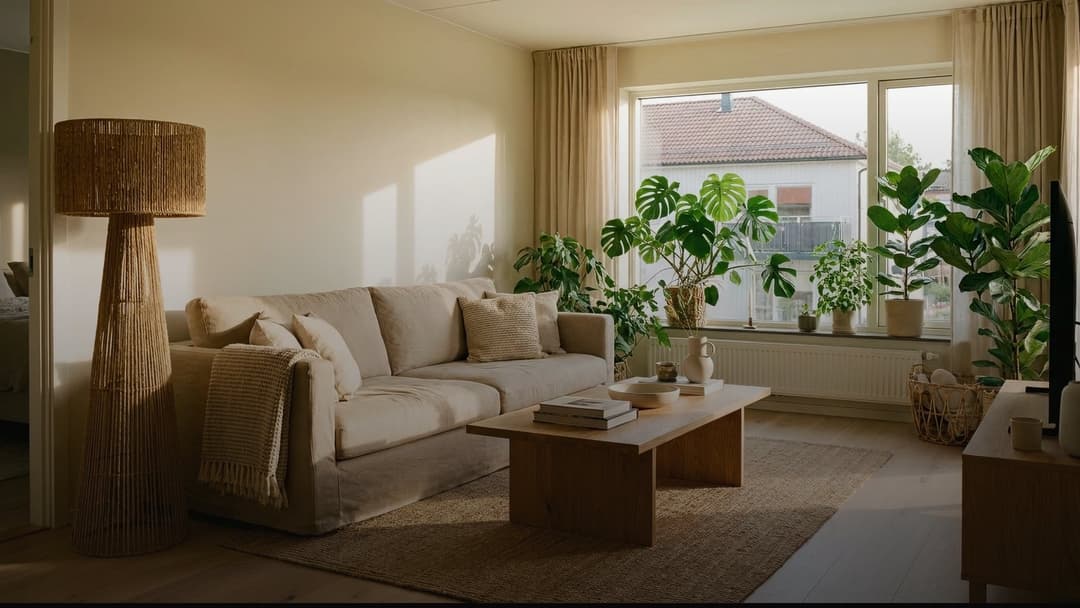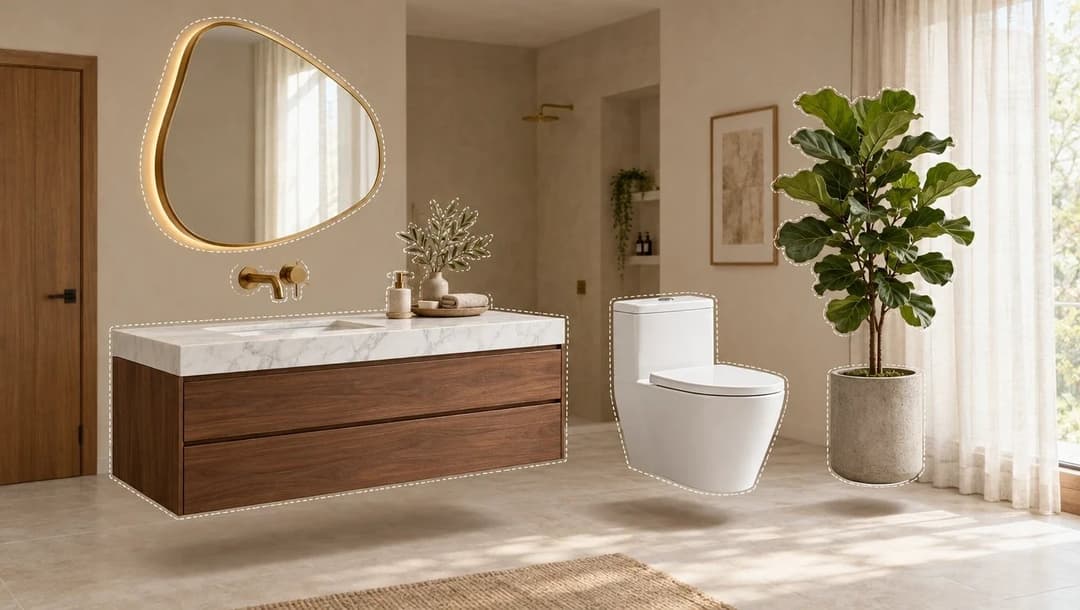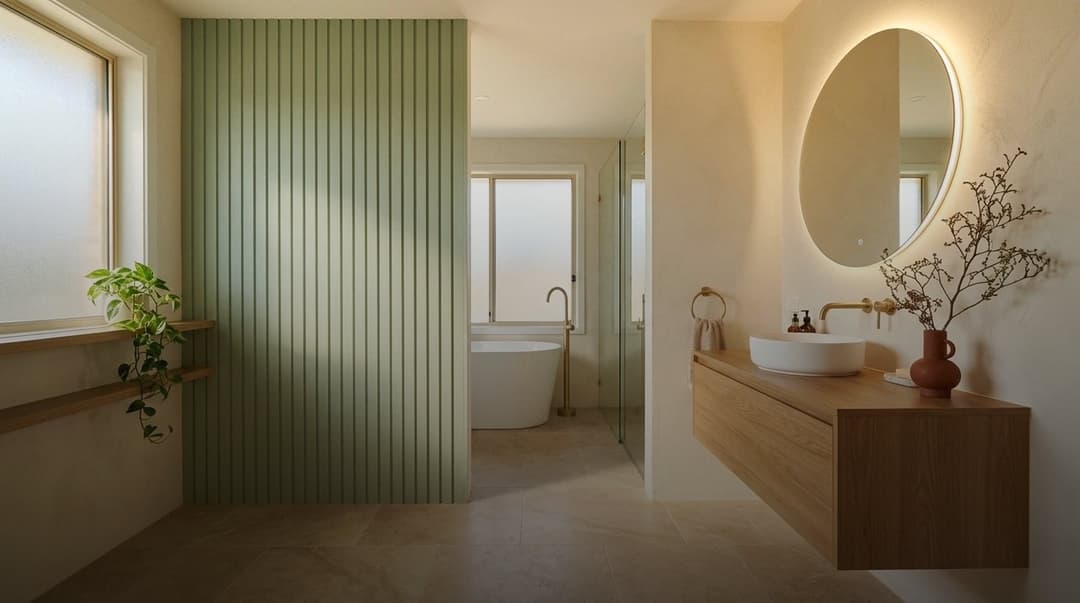
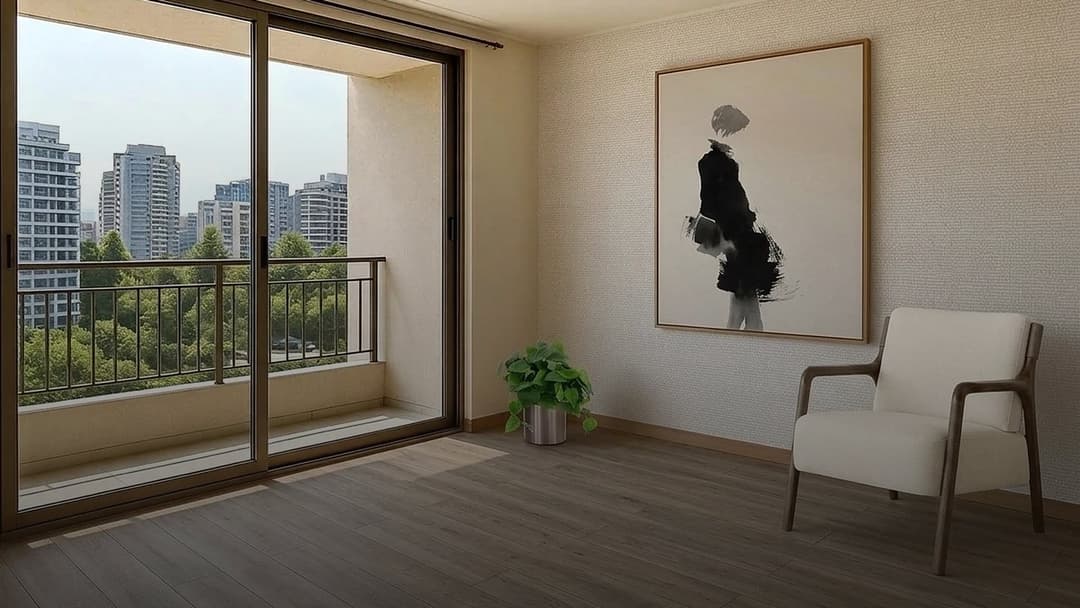
My creations is the page in your account that keeps everything you make with AI on Kouzee: a product tried out in a photo of your home, the bed you dressed layer by layer, and the looks Kou suggests for a whole space. You don't have to save anything by hand. Every image you generate shows up there on its own, along with the products that were used.
If you just created your account, that page is empty. This guide tells you what you'll see once it fills up and the three ways to get your first creations, from the quickest to the most complete.
What is My creations and how do I get there?
Open your account menu by tapping your photo at the top right, and choose My creations. You can also go straight to kouzee.com/mis-creaciones.
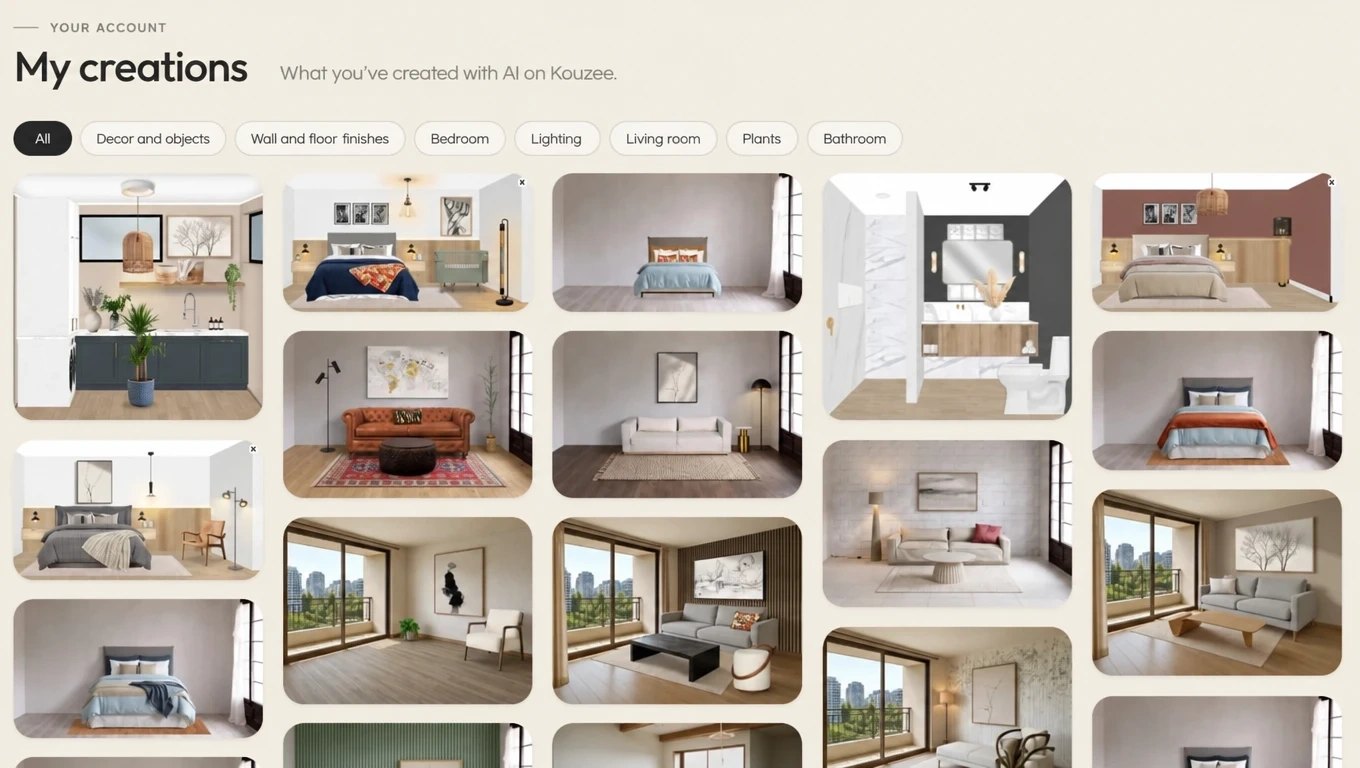
Creations appear in a grid, newest first. Each one carries a label that says where it comes from:
- In your space: a catalog product placed in a photo of yours.
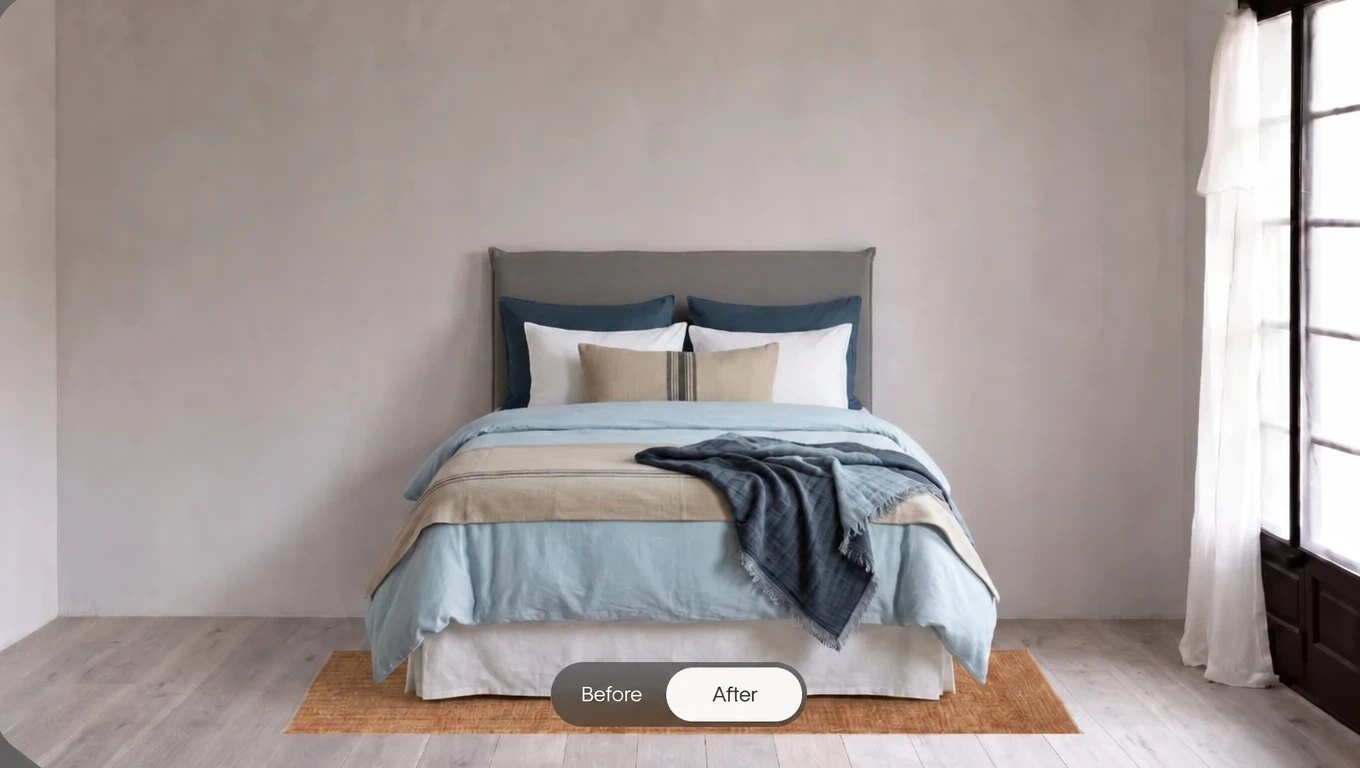
- Your bed: a bed dressed with the bed tool.
- AI design: one of the looks Kou suggested for a space.
Above the grid there are category filters (Living room, Bedroom, Lighting, Wall coverings and any others that show up in your creations). They come in handy once you have several and want to see, for example, only what you tried for the bedroom.
The quick way: «Míralo en tu espacio»
It's the most direct way to get your first creation and the most useful one before you buy. On the page of any product in the catalog, below the save and buy buttons, there's the Míralo en tu espacio button («See it in your space»). Its text changes with the product: on a lamp it reads «Mira esta lámpara en tu mesa» (see this lamp on your table), on a cushion «Míralo en tu sofá» (see it on your sofa), on flooring «Mira este piso en tu espacio» (see this floor in your space).
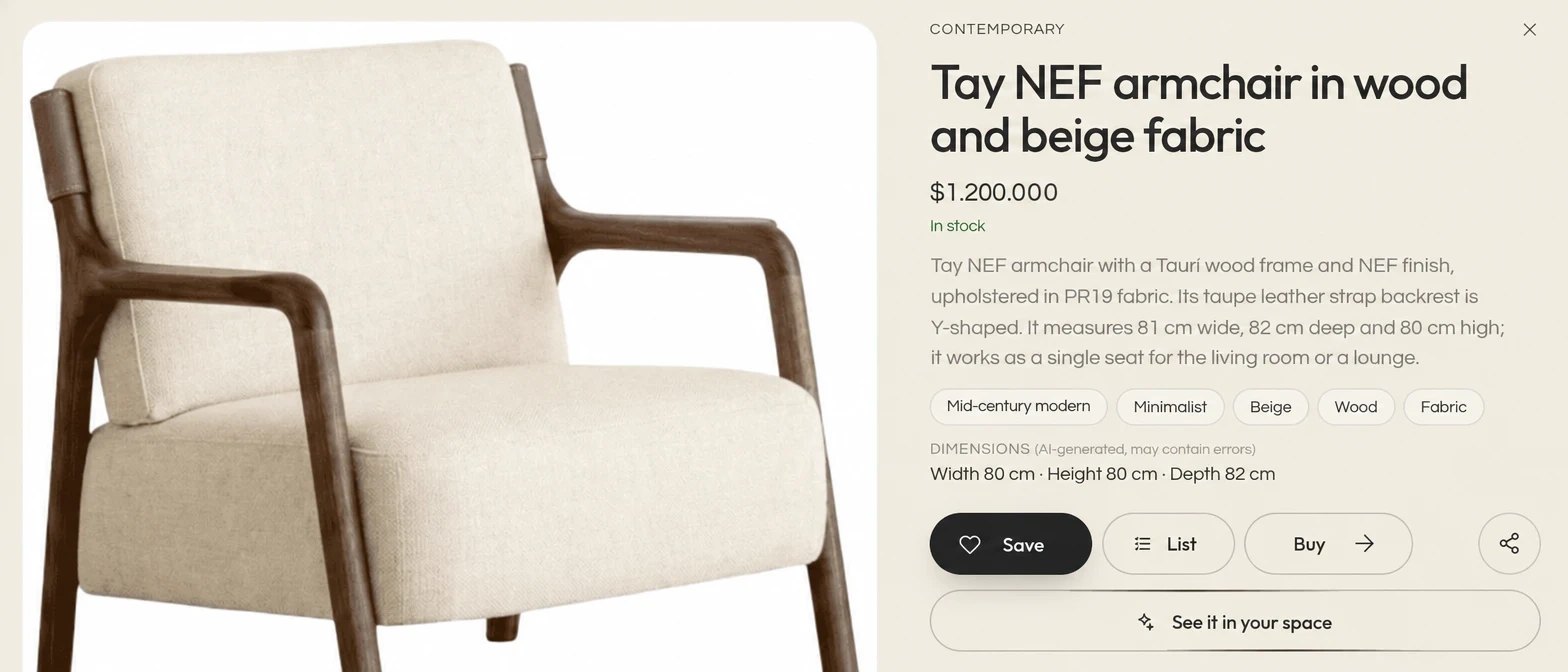
- Tap the button.
- Upload a photo of the spot where the product would go. It works best if you take it straight on, in good light and with the space cleared.
- In a few seconds you see the product placed in your photo, at its size and in its light.
Each image uses 3 Zees, Kouzee's currency for everything done with AI. When you create your account you get free Zees, so your first try costs you nothing.
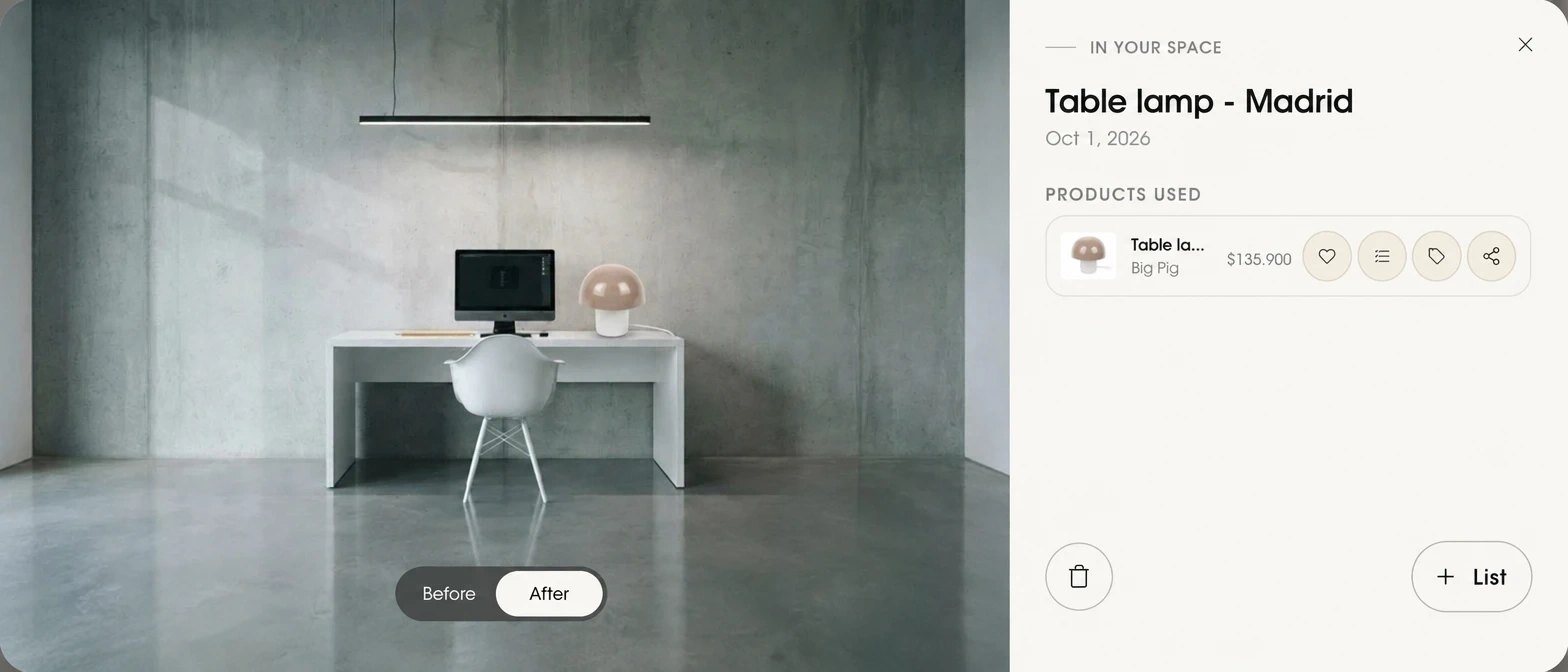
What is it for? To settle the doubt no catalog photo can: whether that lamp gets lost on your desk, whether the armchair blocks the window, whether the tile color clashes with your wall. With the Before / After toggle you compare your space as it is today with how it would look. It's cheaper to get it wrong in an image than in a return.
The bed of your dreams: dressing it is free
In How to dress a bed you're welcomed by Blanca, an advisor who guides you step by step. You choose your bed size and dress it in layers, from the bottom up: rug, bed skirt, duvet cover, euro shams, pillows, cushions and, at the foot, a bed runner and a throw. Every product is real and comes in the size that fits your bed.
Building it layer by layer doesn't use Zees. You can try as many combinations as you like. Only when you ask for the final image of the look, the dressed bed in a bedroom, does it use 4 Zees. That image lands in My creations with the Your bed label and the list of pieces you used.
The complete way: interior design with AI
When you don't want to try one product but rethink a whole space, there's interior design with AI. Here you talk with Kou, Kouzee's design assistant:
- You upload a photo of the space: a living room, a bedroom, a terrace.
- Kou goes over it with you: it confirms which space it is and asks what you want to change (walls, floor, furniture, decor), what your budget is and which styles you like.
- It prepares 3 proposals, each with a name, a style, a board with the chosen products and the total price.
- You pick one and see the look: your photo transformed with those real catalog products.
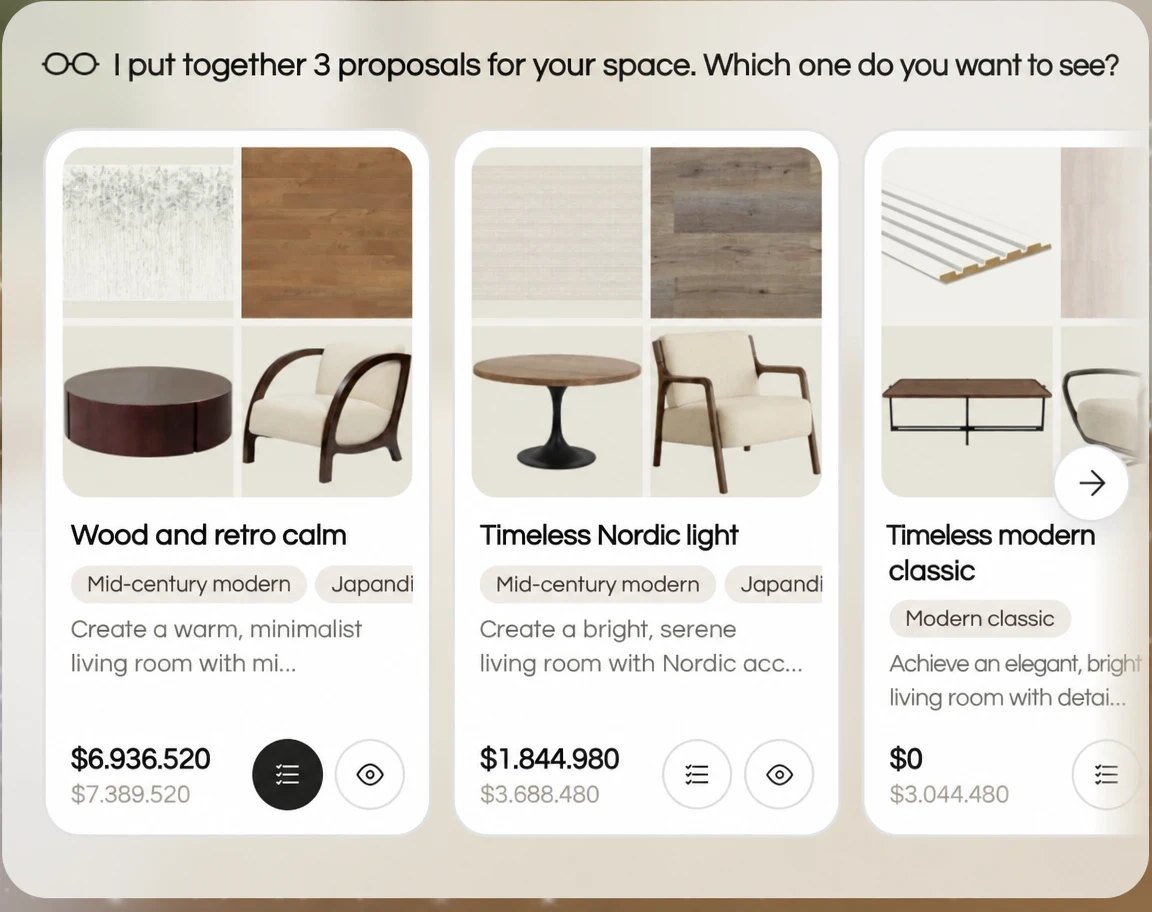
A complete design uses 19 Zees in total: that covers preparing your photo and the images of the 3 looks. They're deducted once, when you start; after that you can view and compare the three looks without paying again.
Each proposal is a starting point, not an order. You can adjust the budget or swap products until the look convinces you. If you want to know more about how Kou thinks, we cover it in this article.
What can I do with a creation?
Tap any creation in the grid and it opens large, with the list of products used beside it. The arrows on the sides take you to the next one without closing the panel.
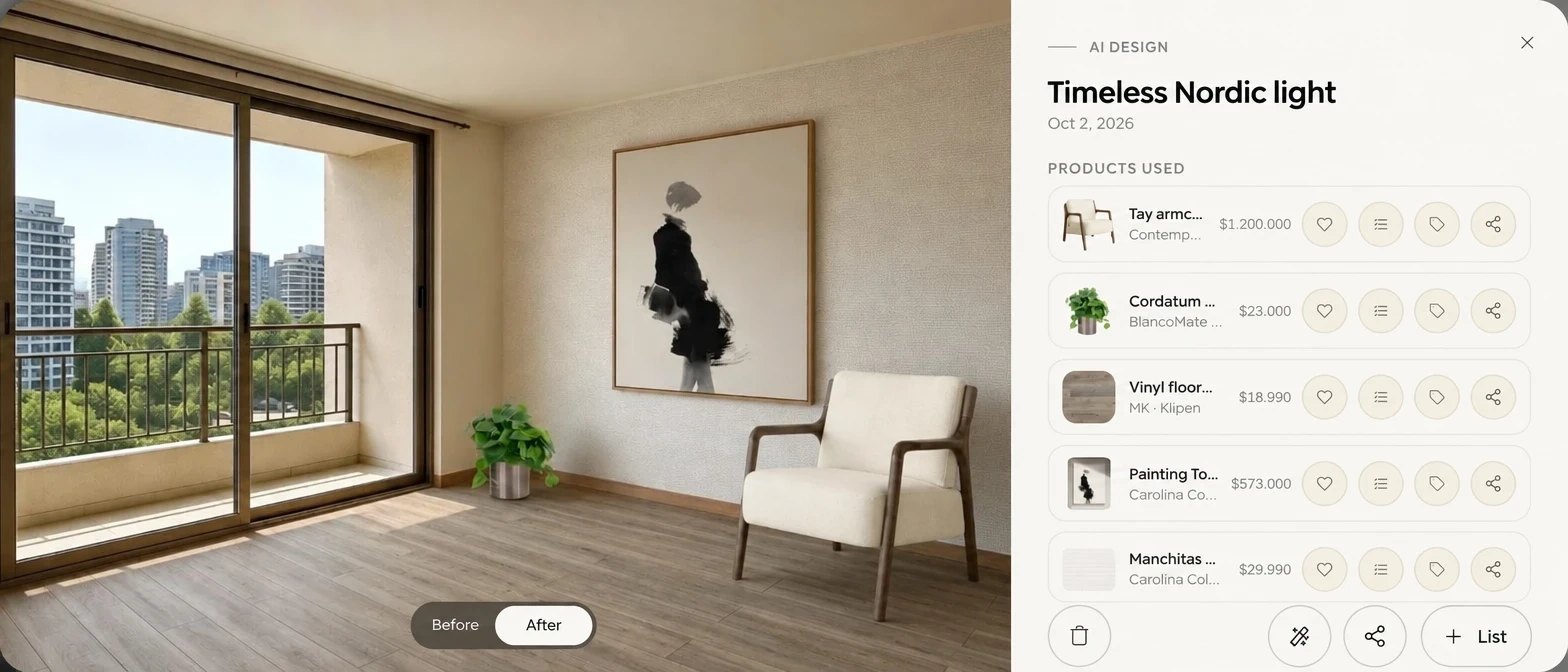
From there you can:
- Compare before and after with the toggle on the image.
- Check each product: save it to a collection, add it to a list, open its page or share it.
- Share the look, if it comes from AI design: a page is created with the image and its products that you can send by WhatsApp or LinkedIn, or copy as a link. You can also email the image to yourself, download it or get it ready for Instagram.
- Keep designing: the magic wand button opens the design where you left it, to swap products or try another proposal.
- Create a shopping list with the + List button.
If a creation is no longer useful, the trash icon removes it from My creations.
A shopping list born from your creation
This is the step that turns a nice image into a plan. When you tap + List, Kouzee builds a list with every product in that creation, with quantities and prices. For wall coverings and flooring it works out the square meters, and the list remembers which look it comes from.
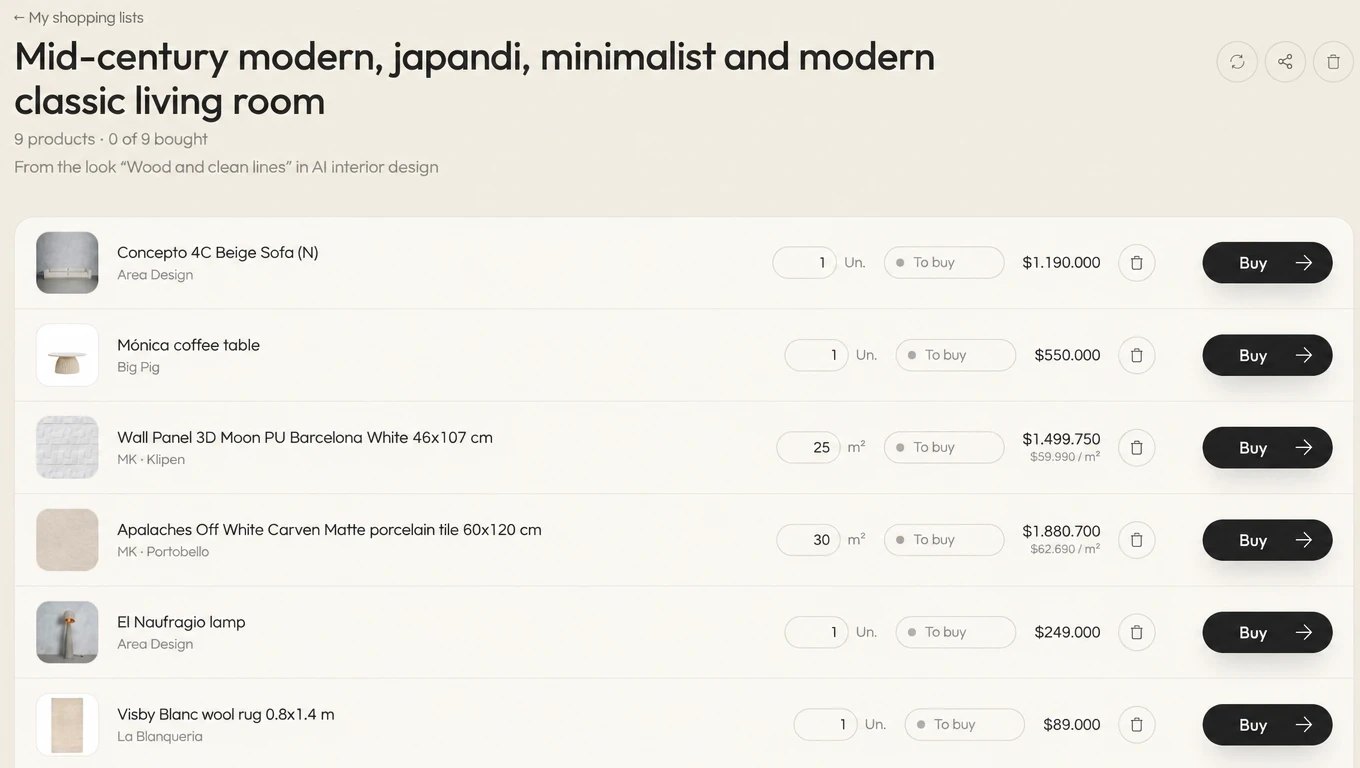
From the list you can:
- Adjust quantities or remove what you already have.
- Go buy each product at its store with the Buy button.
- Mark what you bought with «I bought it» and then «It arrived». At the top you see how far along you are: «3 of 9 bought».
- Share it with whoever is deciding with you.
If you tap the button again on the same creation, no duplicate list is created: the button changes to View list and takes you to the one you already have. Everything else about lists is in how to use shopping lists.
Frequently asked questions
Are creations public?
No. My creations is private and only you see it. A look becomes visible to others only if you share its link.
What happens if I don't have enough Zees?
Before generating the image, Kouzee lets you know and shows you the available Zees packs. If the image fails, the reserved Zees are returned.
Can I use a photo taken with my phone?
Yes, that's the most common case. Take it straight on, in daylight and, if you can, with the space cleared: the result comes out much more faithful.
Do the products in the image exist?
Yes. They all come from the Kouzee catalog, with their price and store. Since the image is made by AI, it's worth checking the size and color on each product page before buying.
Where to start today
If you have five minutes, pick a product you keep thinking about and try it in a photo of your home: go to the catalog and tap Míralo en tu espacio. If you have a whole space to figure out, go straight to Design my space and let Kou suggest three paths. Either way, whatever comes out will be waiting for you in My creations.