Valentina moved in three weeks ago and her living room is still empty. Her phone is full of screenshots: a sofa she saw on a decorating account, a lamp she liked at a friend's house, a light wood floor she can't remember where she found. None of those photos help her buy anything. She doesn't know the sofa's brand, how much the lamp costs, or whether that coffee table fits her space. She has inspiration, but not a single real piece.
That is exactly what the Inspiration section on Kouzee solves: every image you see carries, underneath, the real products that appear in it, with brand and price. This is the first of four articles about how to use the site; here we start where everyone actually starts, which is looking.
What is the Inspiration section?
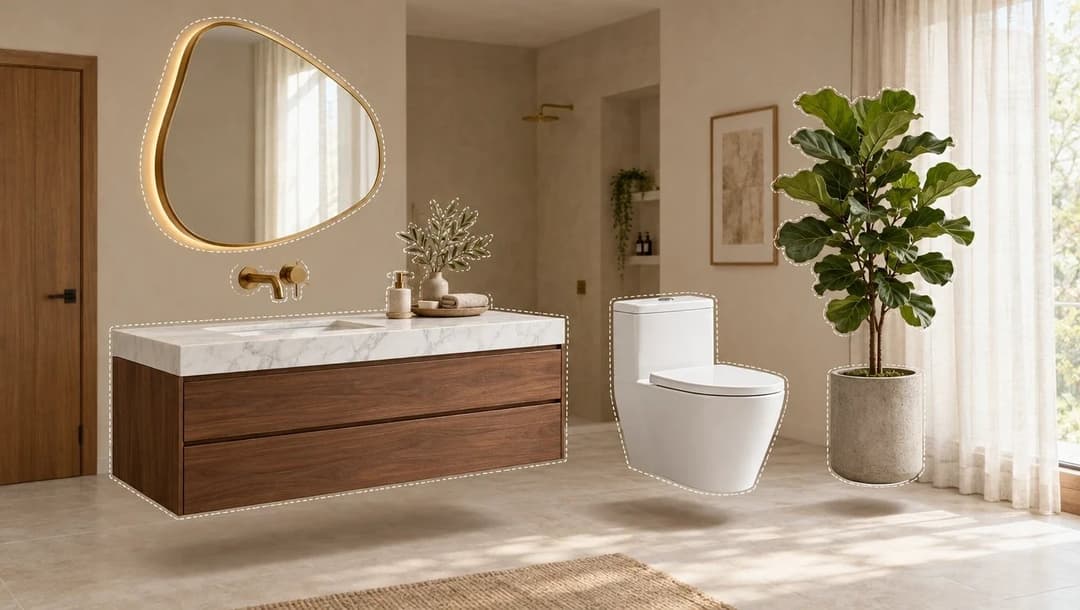
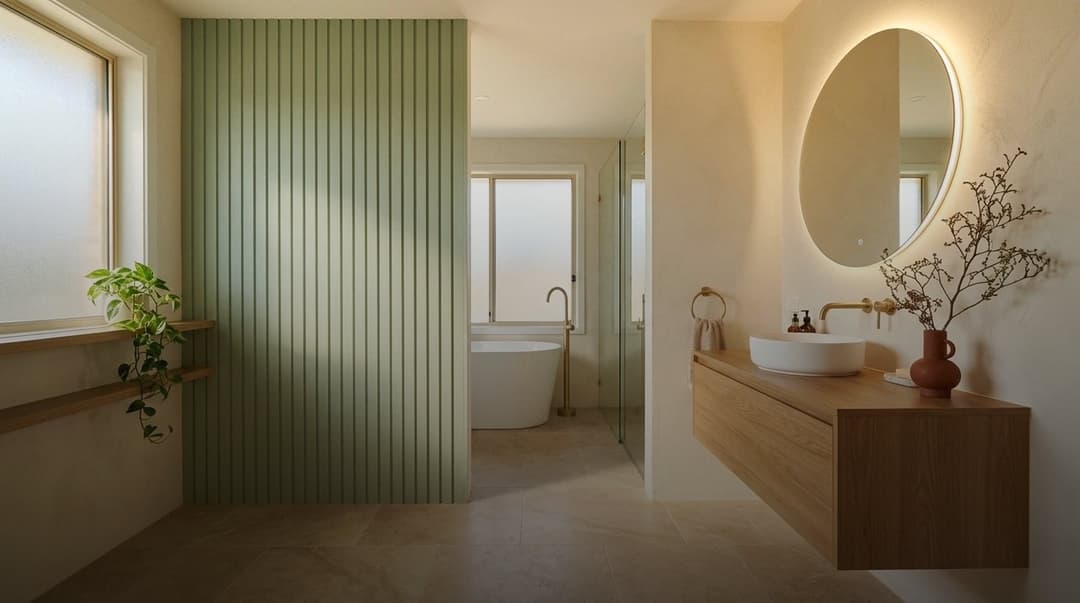
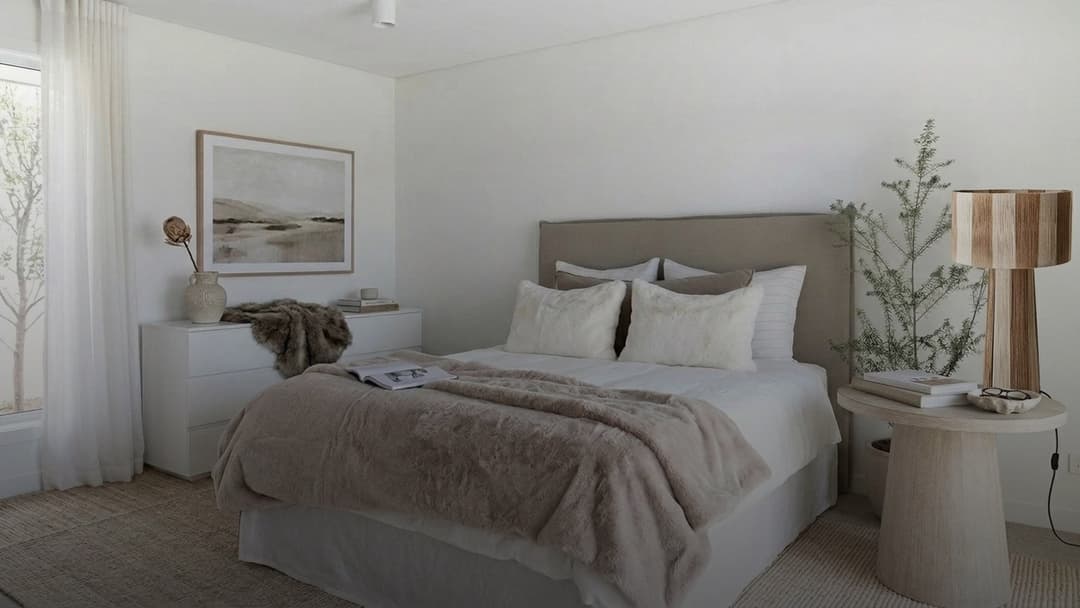
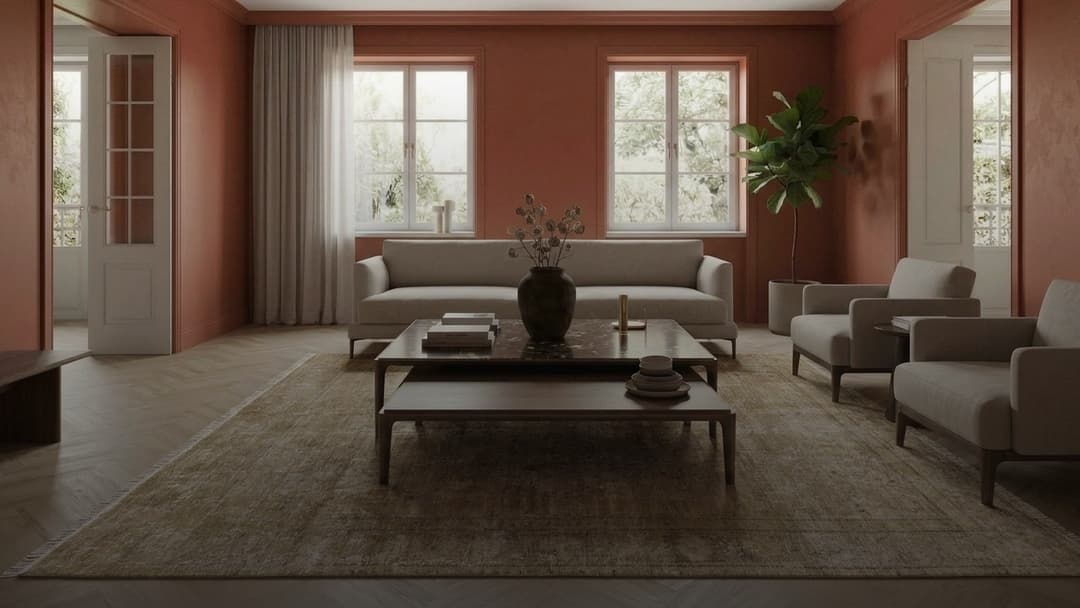
It's a wall of interior images and videos created with artificial intelligence by designers and brands, plus public boards made in the Kouzee app. What sets it apart from any other decorating wall is what sits behind the photo: the products in the scene exist, are on sale and are linked.
You don't need an account to browse or to filter. An account only becomes necessary when you want to save something, and we get to that below.
How do I search for a specific idea?
The search bar at the top right understands descriptions, not just single words. You can type living room with a leather sofa, kitchen with a wooden island or bedroom with warm light and it returns scenes that match that idea, even if you didn't use the same words as whoever published the image.
It's the fastest route when you already have something in mind. When you don't yet, the filters are the way in.
How do I filter by space and style?
There are two tabs next to the search bar: Spaces and Styles. Choosing one shows the row of available options underneath.
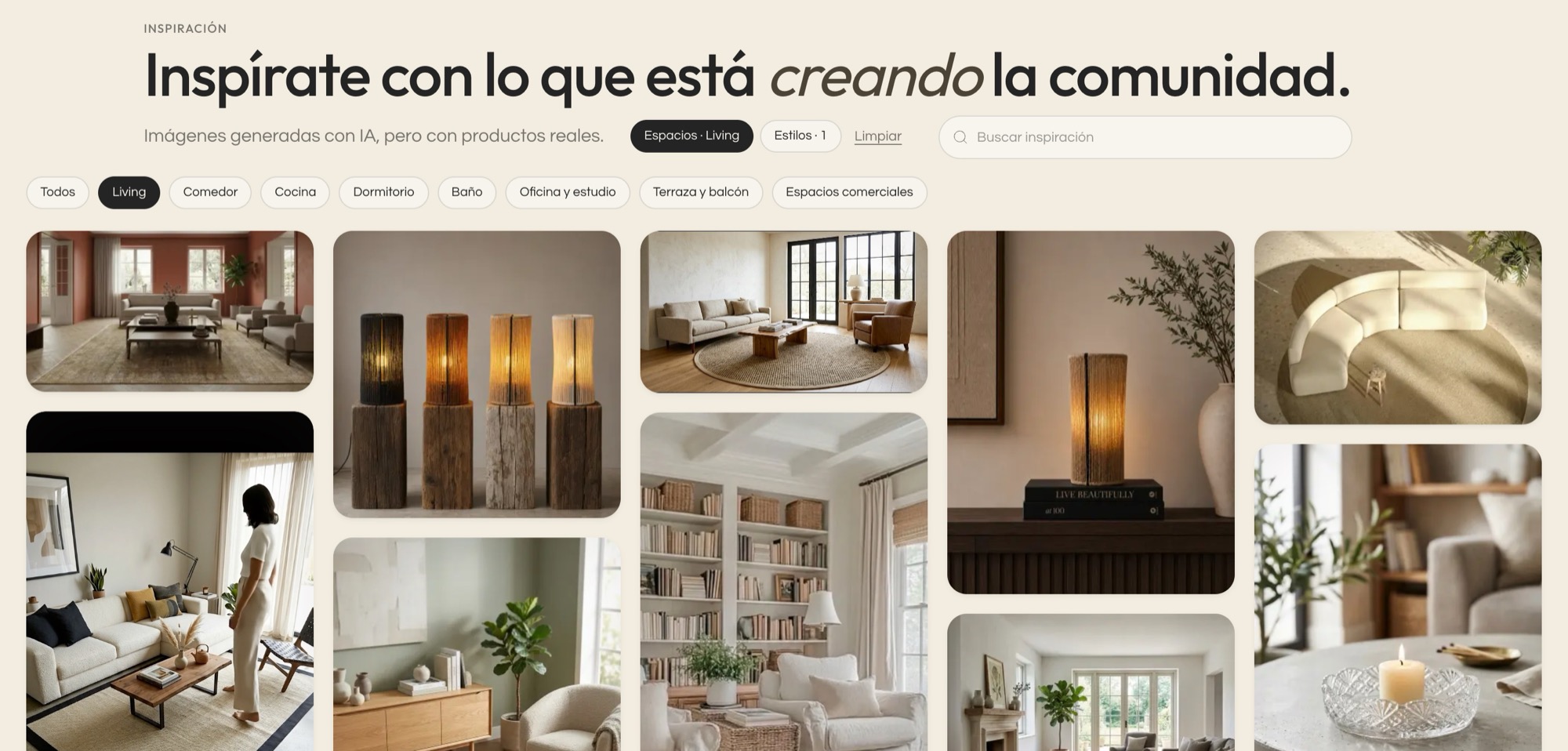
- Spaces: living room, dining room, kitchen, bedroom, bathroom, office and study, terrace and balcony, commercial spaces.
- Styles: modern, minimalist, Scandinavian, japandi, industrial, rustic, natural and several more.
The two combine: you can ask for living room and japandi at once and keep only the scenes that meet both. If a style name means nothing to you, it's worth a look before you decide; japandi, for instance, mixes Japanese minimalism with Scandinavian warmth, and that description makes far more sense after ten living rooms in a row than after reading the definition.
A practical detail: the combination you built stays in the browser's address bar. When you filter by living room and japandi, the bar at the top reads kouzee.com/inspiracion?espacio=living&estilo=japandi. That link can be copied and sent in a message: whoever opens it sees exactly the same selection you were looking at. Useful for agreeing with your partner, your mother or whoever is helping you, without sending twenty screenshots.
The Clear button, next to the tabs, removes every filter at once.
What do I see when I open an image?
Clicking a scene opens its detail view. The image or video sits large on the left; everything worth knowing about it, on the right.
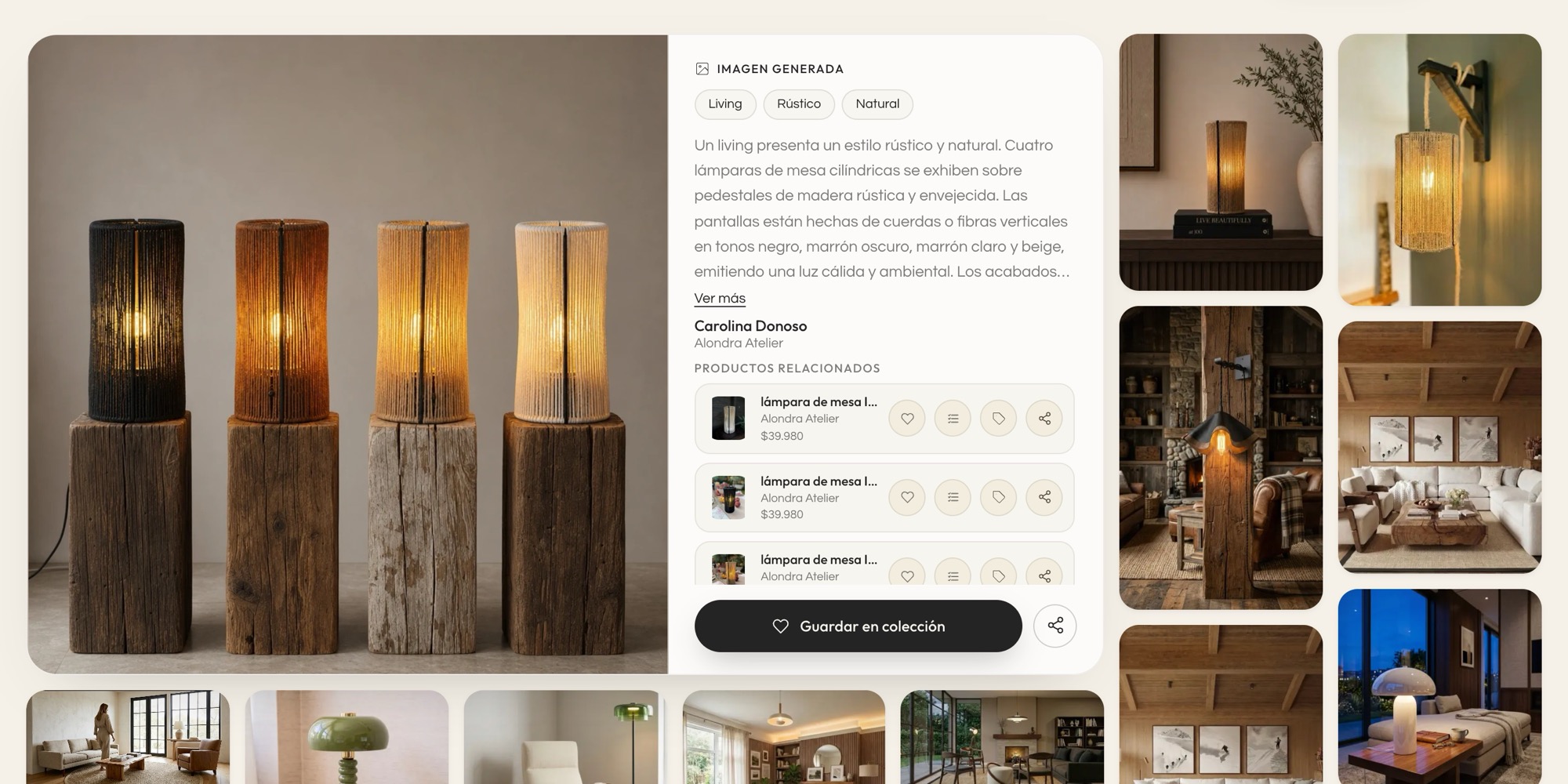
From top to bottom you find:
- The tags for space and style. They are buttons: tapping Living room or Rustic takes you back to the wall already filtered by that, which is the most natural way to pull the thread when a scene works for you.
- The description of what's in it, with a See more if it runs long.
- Who made it: the person's name and the brand or studio behind it.
- The related products, with photo, name, brand and price. Each one comes with four actions: save, add to list, buy and share. The product name leads to its page in the catalog, and the brand name to that brand's page with everything it sells.
That product list is the part that changes the game. It stops being "I want something like this" and becomes "this lamp, from this brand, at this price".
Below the detail, the wall continues with other pieces from the same space, sorted by visual similarity to the one you are looking at. It's the best way to find variations: if you liked the living room but the sofa looks too dark, the close versions are right there.
How do I save what I like?
Hover over any image on the wall (on your phone, press and hold) and a heart appears in the corner.
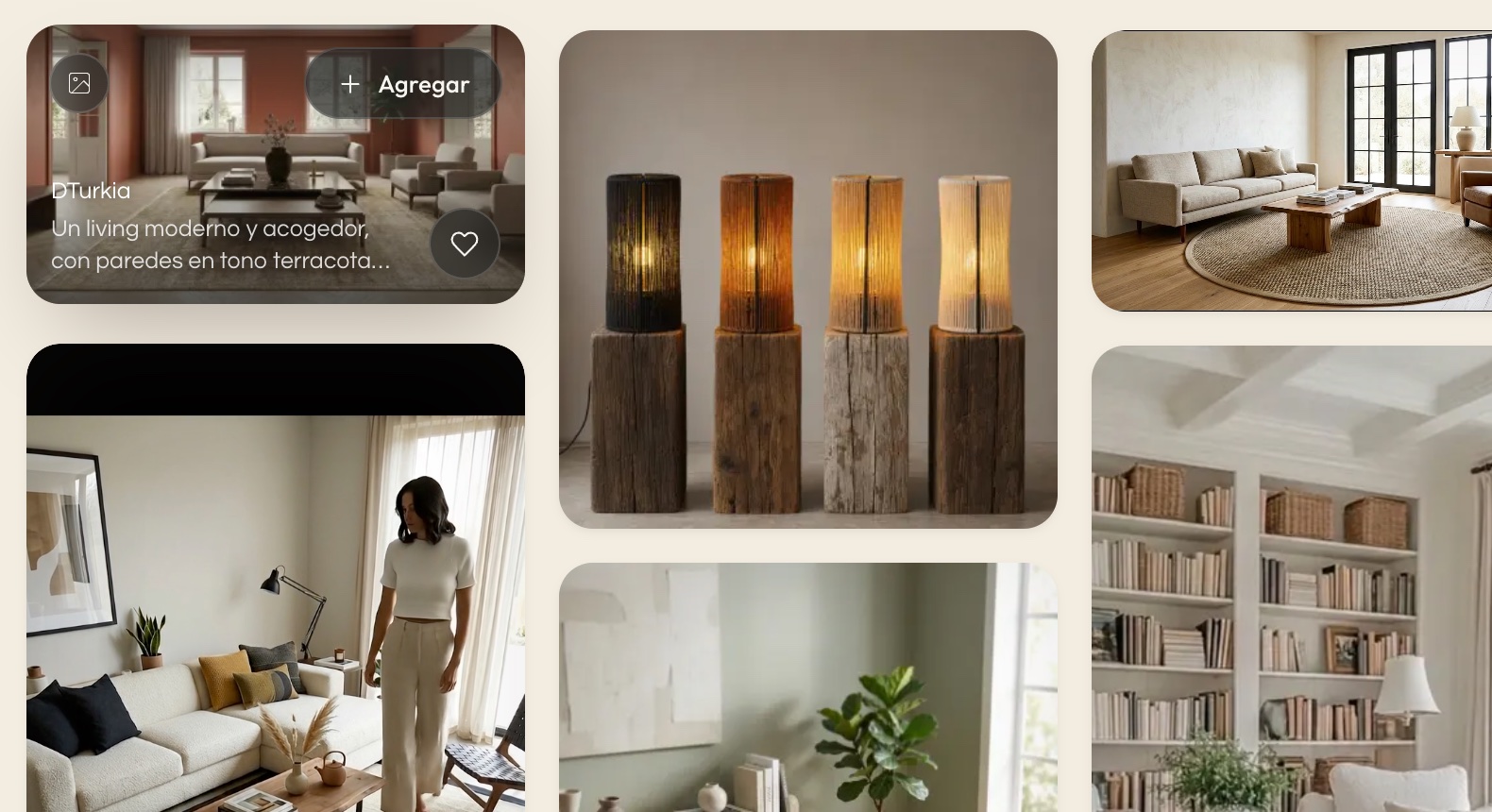
That heart saves the image, the video or the board into one of your collections. Inside the detail view the same gesture is a large button: Save to collection. And the products in the list are saved separately, each with its own heart, in case you want the lamp but not the rest of the scene.
It's worth saving from the start, even if you haven't decided anything yet. A scene you saw two weeks ago and didn't save is, in practice, a scene you lost: the wall changes, and finding it again with the same words almost never works.
Where this goes next
Inspiration is the front door. The other three parts of the site pick up from there:
- Catalog: every product from the brands, with price, stock and a link to buy. There you can search by text or upload a photo to find similar things.
- Collections: the folders where everything you save with the heart lands, with sections by room and the option to share them with other people.
- Shopping lists: what you have already decided to buy, with quantities, subtotals and a status per product.
Each one has its own article in this series. If you are just starting, the order above works best: look, search, save, and only at the end build the list.
Frequently asked questions
Do I need an account to use Inspiration?
Not to browse, search or filter. Yes to save to a collection.
Are the images real photos of homes?
Most are images and videos generated with artificial intelligence by designers and brands. What's real are the products: the furniture, lamps and objects linked under each scene are genuinely for sale.
Can I buy right there?
The Buy button on each product takes you to the store of the brand that makes it. Kouzee shows you the price and leaves you at the right door.
Where to start today
If you are in Valentina's position, with an empty space and a folder of useless screenshots, do this: go to Inspiration, filter by the room that has you stuck, look at twenty scenes and save the five you like without overthinking it. In a single session you go from "I don't know what I want" to five references with products, brands and prices attached. From there, deciding is far easier.