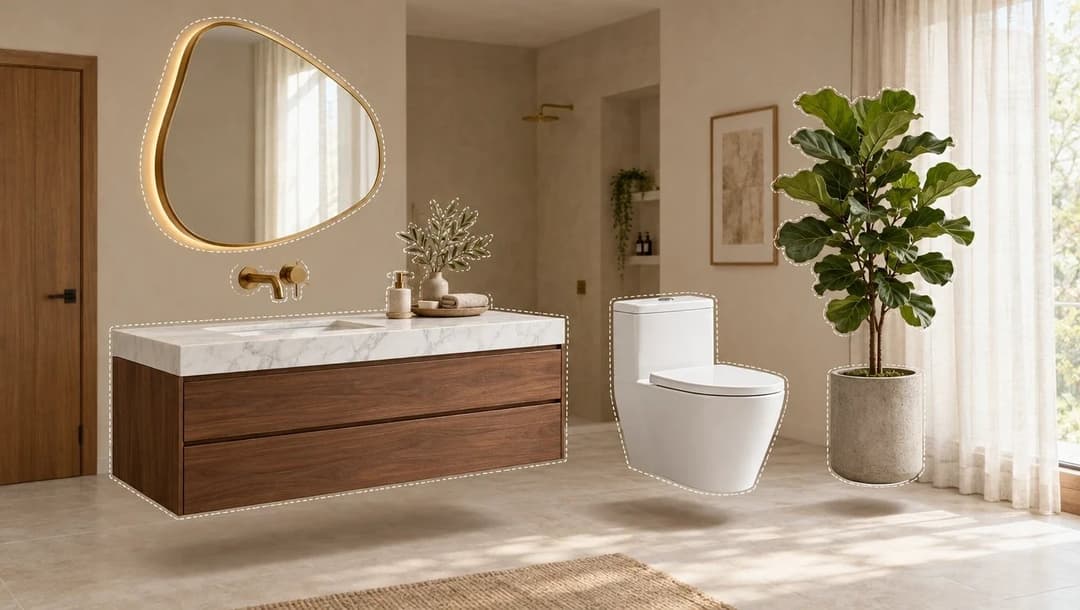

Valentina's heart filled up, literally. She saved twelve living room scenes, four sofas, two rugs, a lamp that was actually for the bedroom and a kitchen surface that showed up in a photo and caught her eye. All of it together, in a single pile. When her sister asked "so which sofa are you getting?", she had to scroll for three minutes to find it.
Collections are where that gets sorted out. They're your folders, with sections inside, and they can be shared with whoever is deciding alongside you. This is the third article in the series; before this we covered how to find ideas in Inspiration and how to search for products in the catalog.
What does a collection hold?
Both things at once: catalog products and inspirations —images, videos and boards—. That's what makes them useful. The photo of the living room you liked and the specific sofa you're weighing up live in the same folder, and when you open it you see the idea and the piece side by side.
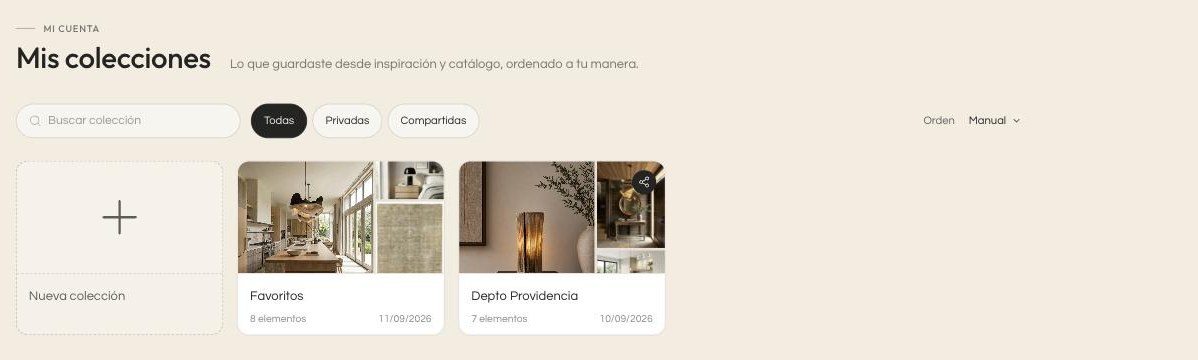
The index shows them all with their cover, which builds itself from what's inside, the number of items and the date. At the top there's a search by name and three tabs to filter: All, Private and Shared. On the right you can change the order.
What is "Favorites"?
It's the collection that already exists the first time you come in, and it's where anything you mark with the heart lands if you don't choose another folder. It has one trait worth knowing: it's the same one as the favorites in the Kouzee design app. What you mark on one side shows up on the other, with nothing to sync by hand.
Because it's the default collection, Favorites works differently from the rest: it can't be renamed, deleted or shared, and it has no sections. It's an inbox. Anything you want to organize or show to someone is better moved into a collection of your own.
How do I organize a collection on the inside?
With sections. A collection for an apartment usually ends up with "Kitchen", "Living room", "Bedroom", and that alone stops it from being a pile.
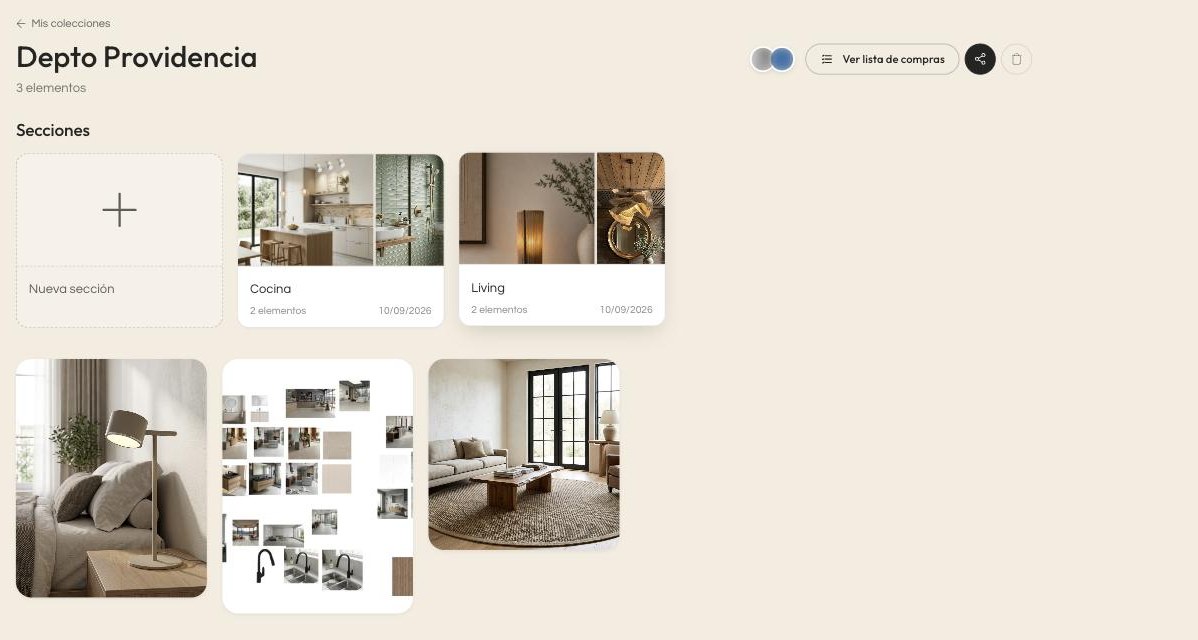
Sections are created with the New section box; they can be renamed, reordered by dragging and deleted. Below them sits the rest of what you saved, whatever you haven't assigned to one yet.
It's the part people skip most and the one that pays off most. A collection with three sections can be reviewed in two minutes; the same collection without sections forces you to go through all of it every time.
What happens when I open an item?
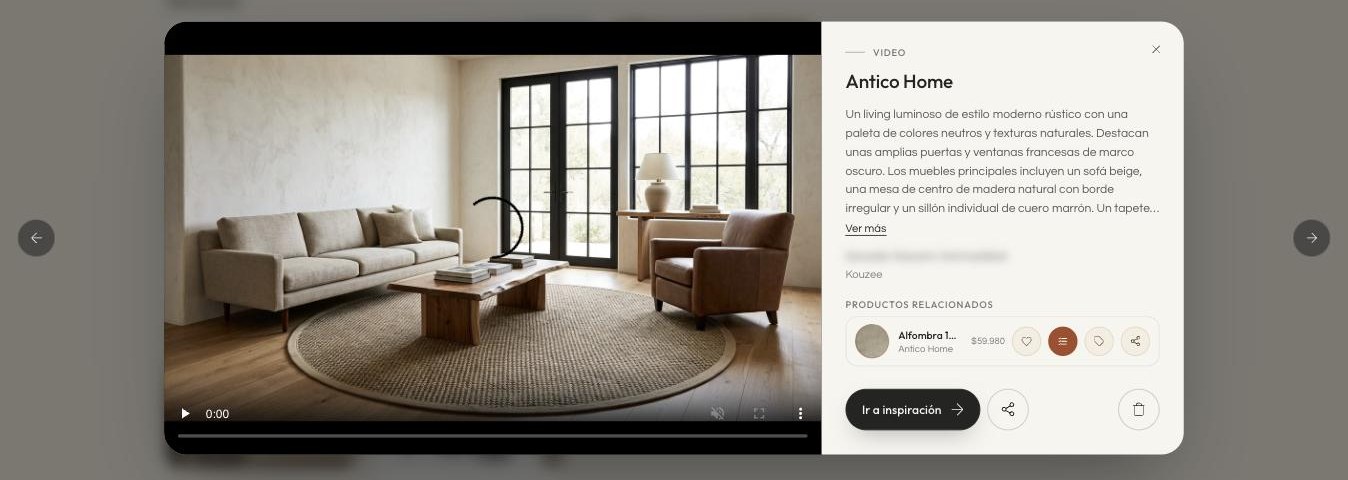
A panel opens with the full detail on top of the collection: the image or video large, the description, the brand and the related products with their price and their save, list and buy buttons. If it's a catalog product, it also brings the gallery with arrows —swipe on your phone—, the dimensions and the long description.
The handiest part is the arrows on either side: they move to the next item without closing the panel. That's how you compare four sofas in a row, which is exactly what you want to do and exactly what no folder of phone screenshots allows.
How do I share a collection?
With the share button, at the top right.
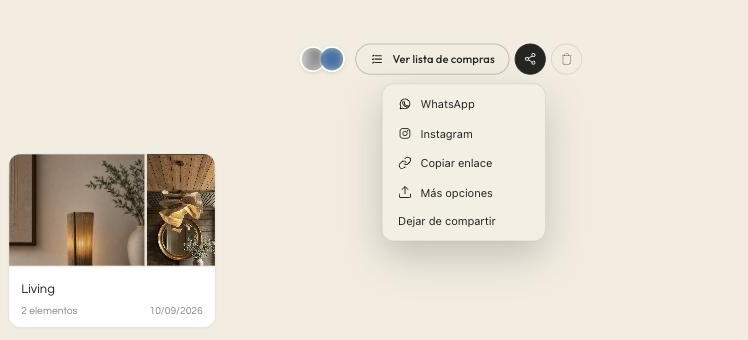
It generates a link you can send over WhatsApp, over Instagram, or copy and paste wherever you like. Whoever opens it has to sign in and accept the invitation; from that moment the collection appears in their Shared with me tab.
And then they really collaborate, they don't just look:
- Everyone with access can save new things, remove items and move them between sections.
- Only whoever created it can rename it, delete it or stop sharing it.
Next to the share button you see the profile pictures of everyone with access, so you always know who you're working with. It's the difference between sending screenshots to your partner and both of you looking at the same folder, live, where whatever one adds the other sees.
And the collections others share with me?
They sit in the Shared with me tab of the index, next to your own. They look and behave the same: you can add what you find, remove what got ruled out and move things between sections. The only things reserved for whoever created it are renaming, deleting and cutting off access.
That split is deliberate. If someone is helping you decide —your partner, your mother, the friend with a good eye, the person designing your space—, what you want is for them to contribute without asking permission every time, while the folder still belongs to someone. That way nobody deletes the whole project by accident.
If you no longer want to stay in a collection someone shared with you, you can leave it and it disappears from your index without affecting anyone else.
Collection or list?
The short rule: the collection is for what you're still thinking about, the list is for what you've already decided.
While you're torn between three sofas, all three live in the collection. When you pick one, that one moves to the list with its quantity and its price, and the other two stay where they are in case the decision falls through. Mixing the two things in one place is what makes a project feel endless: you can never see what's settled and what isn't.
From the collection to the shopping list
When the collection stops being exploration and starts being decision, there's a shortcut: Build shopping list. It's in the same row of buttons at the top, and it copies the collection's products into a new list, respecting its sections.
While building it you can also include the products that appear inside the saved inspirations —not only the ones you saved on their own— and share the list with the same people who already have access to the collection, without sending invitations again.
If the collection already has a list, that button changes to View shopping list and takes you straight to it. That's what the fourth article in the series is about.
Frequently asked questions
How many collections can I have?
As many as you want. The usual thing is one per project or per space: "New apartment", "Terrace", "Gifts". Beyond that you're usually just arguing with yourself.
Can I move something from one section to another?
Yes, and you can also reorder the sections by dragging them. Anyone with access can do it.
If someone removes something from a shared collection, is it lost?
It's removed from that collection. If the product or the inspiration is also saved in another folder of yours, it's still there.
Does what I save on the web show up in the app?
In the case of Favorites, yes: it's the same collection on both sides.
Where to start today
If you already have things in Favorites, give this five minutes: create a collection named after your project, give it two or three sections by room and move there what you're genuinely considering. Then share it with whoever decides with you. You'll notice the change in the first conversation: instead of "remember the sofa I sent you?", you'll both be looking at the same screen.