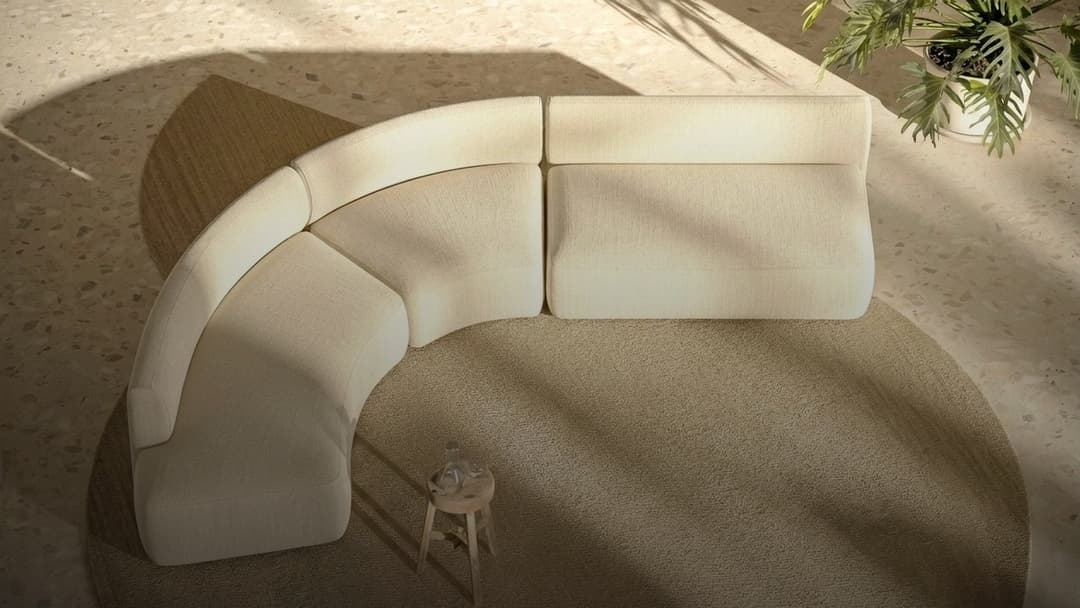
Valentina already has five scenes saved and knows what she wants: a curved sofa, light-colored, one of those that look plush. The problem is the usual one. The wall in her living room is 2.40 meters and she can't spend more than two and a half million pesos. Searching "beige curved sofa" on Google gives her a thousand pretty images and not one that tells her whether it fits and what it costs.
That's what the Kouzee catalog is for: real products from design brands, with price, availability, dimensions and a button that takes you to buy them in the brand's own store. This is the second article in the series about how to use the site; the first was about how to find ideas in Inspiration.
What's in the catalog?
Products that are on sale today: furniture, lighting, surfaces, taps, textiles, plants, objects. Each one with its brand, its price, its discount if it has one and a stock indicator. Kouzee doesn't sell: it shows you the product and leaves you at the store of the brand that makes it.
How do I search for a product?
There are two routes and it's worth knowing both.
By text. The search bar at the top right accepts the product name or the brand name. Sofa, pendant lamp, Klipen.
By image. To the right of the search bar there's a small photo icon. Tapping it lets you upload an image from your computer or your phone, and the catalog returns products that look visually similar to that photo. It solves the most common situation of all: you have a screenshot of a piece you fell in love with and no idea what brand it is or what it's called.
Image search doesn't look for the same product, it looks for products that resemble it: same shape, same proportion, same family of materials and colors. That's why it sometimes returns something better than what you set out to find. Upload a photo of a wicker armchair and you don't only get wicker armchairs; you get the natural-fiber variants with that same air, the ones you didn't know existed.
How do I filter?
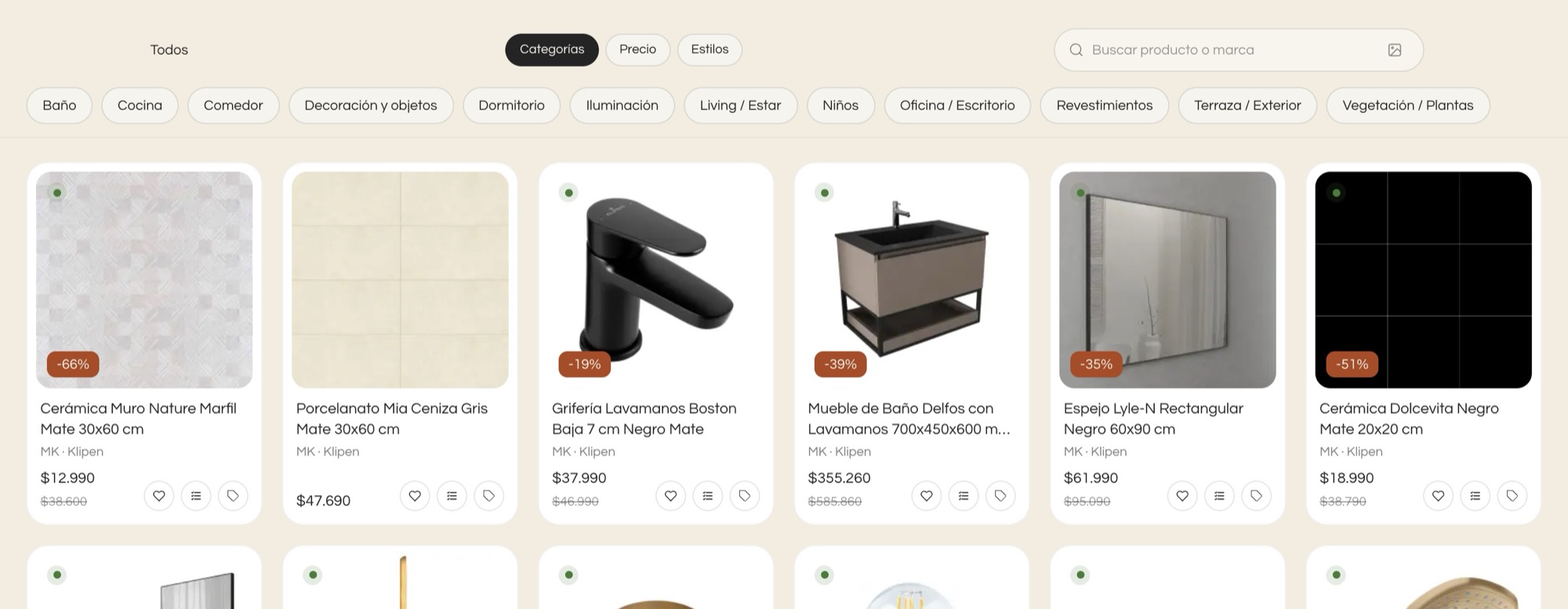
Just like in Inspiration, the filters are tabs. Here there are three.
- Categories: bathroom, kitchen, dining room, decor and objects, bedroom, lighting, living room, kids, office, surfaces, terrace, plants. Each one opens finer subcategories: inside living room are the sofas, and inside sofas you reach what you were after.
- Price: four brackets, from the lowest up to "Over…", always in the currency of your country, plus an In stock toggle to leave out whatever isn't available.
- Styles: modern, minimalist, Scandinavian and the rest, the same as in Inspiration.

The price filter is the one that saves the most time. If you know what you can spend, setting it first keeps you from falling for things you're not going to buy, which is the fastest way for a project to stall.
What does each card tell me without opening it?
More than it looks. Learning to read them is worth it because they save you clicks.
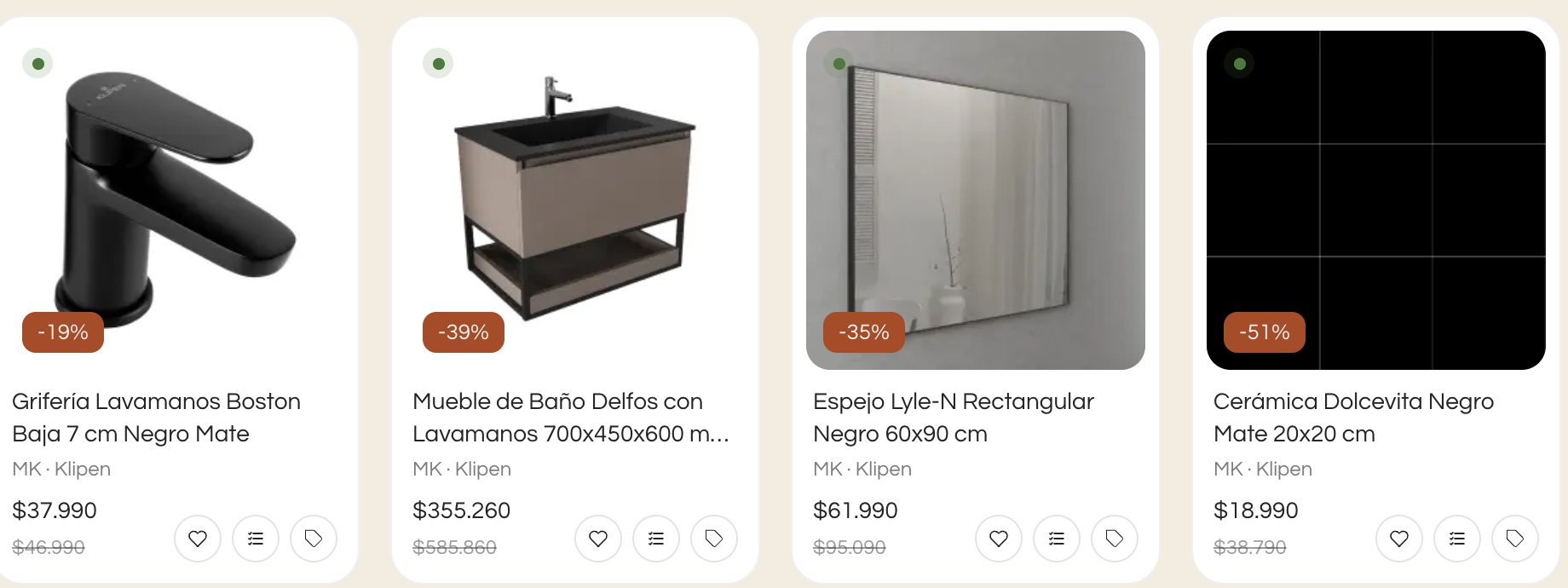
- The green dot at the top left means it's in stock.
- The orange tag at the bottom of the photo is the discount percentage, and the price appears with the previous value struck through beside it.
- Under the price there are three buttons: the heart saves the product to a collection, the middle one adds it to a shopping list, and the tag takes you to buy it.
- The gray text under the name is the brand. Tapping it takes you to its page with everything it sells, which is the best way to keep looking once a brand has won you over.
What's on the product page?
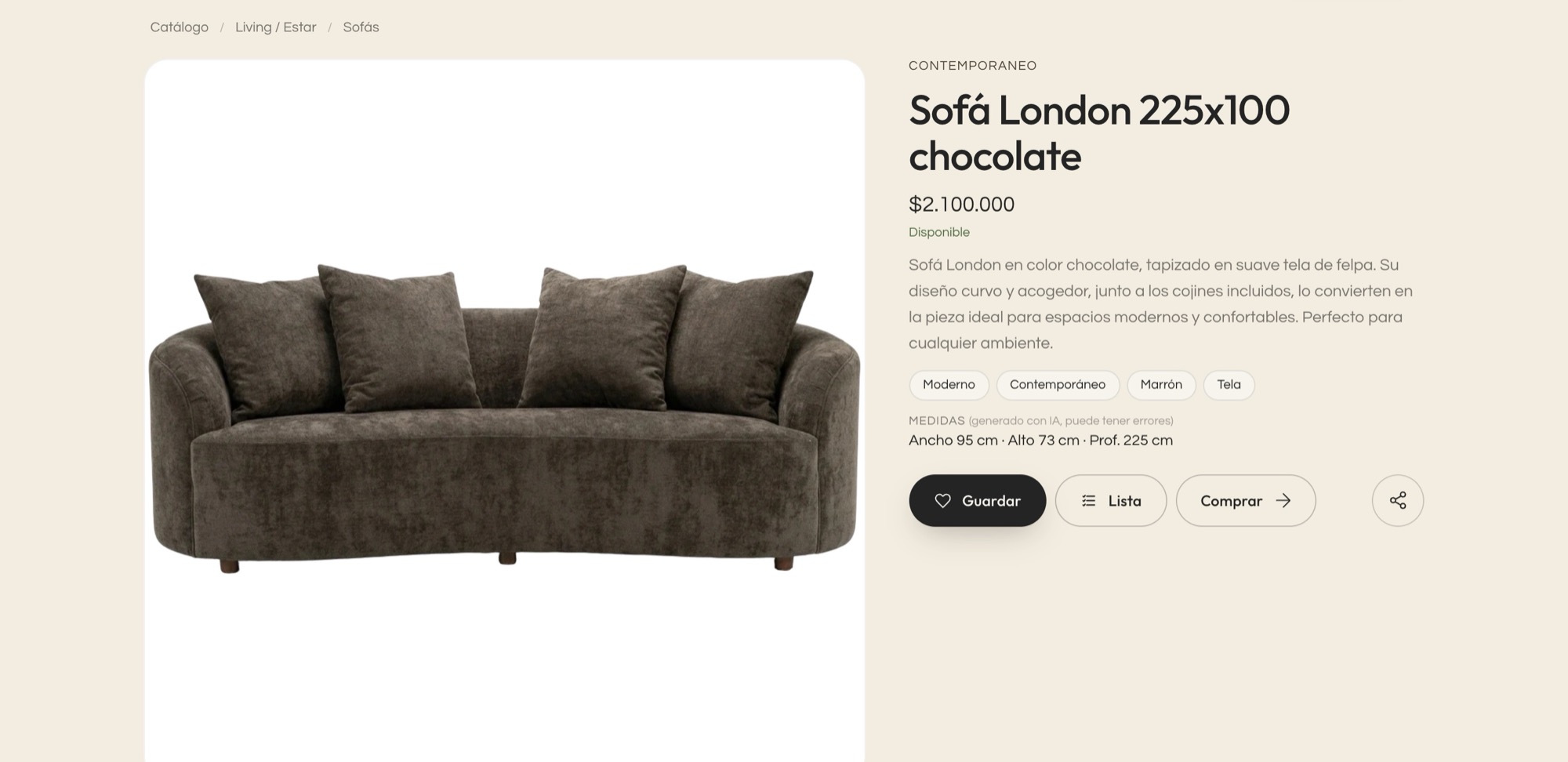
At the very top is the path —catalog, category, subcategory— in case you want to go back and look at the rest of the sofas. On the left, the photo gallery with arrows to move through it. On the right:
- Price and availability, in plain words.
- A short description plus tags for style, color and material.
- Dimensions: width, height and depth. They are calculated automatically from the brand's information and the page says so, so if the centimeter is critical it's worth confirming in the long description or directly with the store.
- Save, List, Buy and Share. Share opens WhatsApp, Instagram, copy link and send to the Kouzee app.
Further down is the brand's full text, which usually carries what didn't fit in the short description: materials, structure, whether it's imported, whether the price changes with finishes.
What happens if I tap the brand name?
You land on its page inside Kouzee, with all of its products together. It's a shortcut worth using more than it gets used: when you find a sofa you like, chances are the rest of that brand will work for you too, because it shares materials, palette and finishes. Looking at the whole brand is far more efficient than going on hunting for loose products, and it also helps the things in your home talk to each other instead of looking like a pile of finds.
The brand name shows up in both places: on the listing card, under the product name, and above the title on the product page.
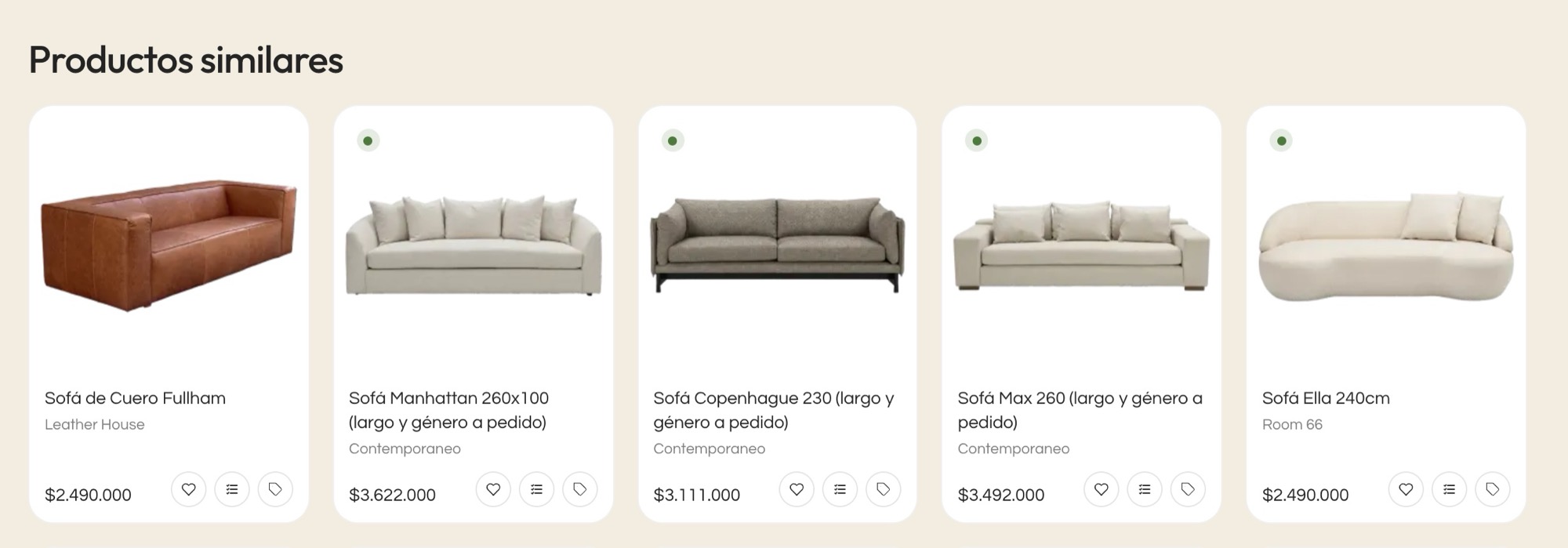
Similar products
At the end of every product page there's a row of similar products. It isn't just "other sofas": the selection favors those close in price and in the same style, which is exactly the question you ask yourself when you find something you like but it's out of budget.
Where this goes next
Once you have candidates, the catalog gives you two exits:
- The heart, to save them in a collection and compare them calmly.
- The list button, to send them to a shopping list with quantities and totals.
Both have their own article in this series. If you're still exploring, save; if you've already decided, send it to the list.
Frequently asked questions
Do I buy inside Kouzee?
No. The Buy button takes you to the brand's store, which is who sells and ships. Kouzee gathers the catalog and shows you the price.
Are the prices up to date?
They come from the brands, with their discount and their stock. Even so, the final price is always confirmed by the store, especially on products that change with finishes or made-to-order dimensions.
Can I trust the dimensions?
They're good for ruling things out fast: if your wall is 2.40 and the sofa is 2.60, you already know. For the fine cut, check the brand's long description, which usually carries the exact measurements.
What kind of photo works for image search?
Any one where the product is fully visible and is the main subject. A screenshot of a post, a photo from a store or an image from Inspiration all work well; a very dark photo, or one with half the piece cut off, not so much.
Where to start today
The catalog works best when you use it the opposite way to how people tend to: the limit first, the taste second. Set the price bracket, turn on In stock, pick the category and only then start looking. What's left on screen is what you can actually buy, and that turns an afternoon of browsing into a decision.
Take that screenshot of the piece you've had saved for months without knowing whose it is. Go to the catalog, tap the photo icon in the search bar and upload it. In seconds you'll know whether something similar exists, from which brand and at what price. Then filter by your price bracket and use the heart to save the three that work. That's all it takes to go from looking to deciding.